[Comparison] Performance of different Computers
Intro
If you just got a miniPC.
This post is for you.
Benchmarks
How good is your PC?
Do we really need something bigger, faster, newer?
Lets see what we have:
curl -O https://raw.githubusercontent.com/JAlcocerT/Linux/main/Z_Linux_Installations_101/Benchmark101.sh
chmod +x Benchmark101.sh & ./Benchmark101.sh
CPU Benchmarks
The first CPU at home was an Intel P3, then an AMD Athlon 64 3200+ came (both 1 core!)
And look at them now…
Any miniPC or SBC, will bring us ~4C/4T CPU:
sysbench --test=cpu --cpu-max-prime=20000 --num-threads=4 run #4 cores
7z b -mmt4- x300 7960 events/s, total 79.6k events
- x300 7zip 6.2k/24.7k
And a max power from the wall seen of 61W with the Tapo P110
For now, the x300 with the 5600G is the most powerful CPU I ever had (a little bit more than the x13 and )
- cpx11 (Hetzner amd epyc x86): 12.3k events and 4.5/9k
#sudo apt install htop
#sudo auto-cpufreq --install #https://github.com/AdnanHodzic/auto-cpufreq

flatpak remote-add --if-not-exists flathub https://flathub.org/repo/flathub.flatpakrepo
flatpak install flathub io.missioncenter.MissionCenter
Memory Benchmarks
sudo apt install sysbench
sysbench memory --memory-oper=read run

#sysbench memory run
#sysbench memory --memory-oper=write run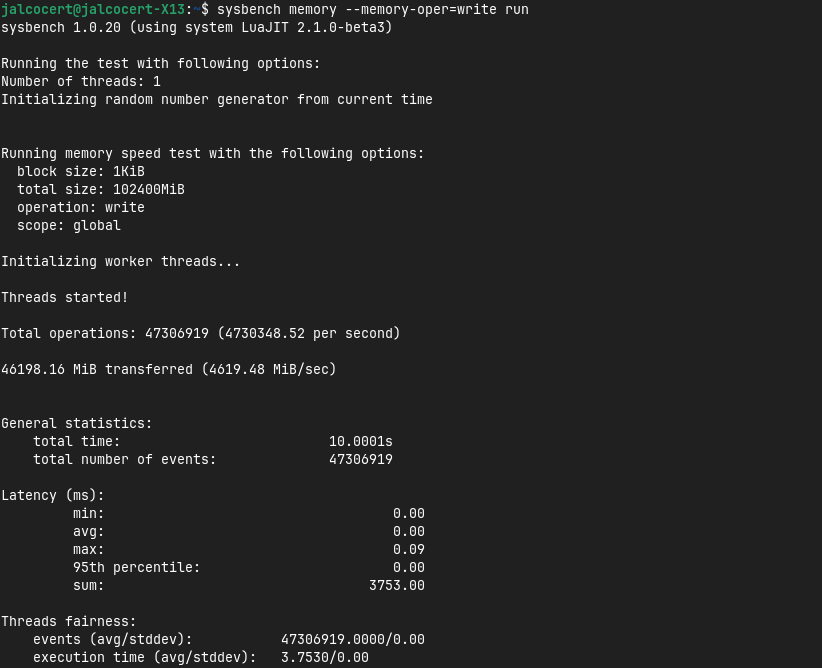
- The x13 with 16GB RAM , got 8164 Mib/sec
- The x300 got 8099Mib/sec
- The Lenovo ThinkBook with 24GB got 6510 MiB/s
- A VPS, the cpx11 hetzner: ~5245Mib/sec
- The Firebat miniPC got me 4077Mib/sec
- And the Pi 4 4GB ~175MiB/sec (x86)
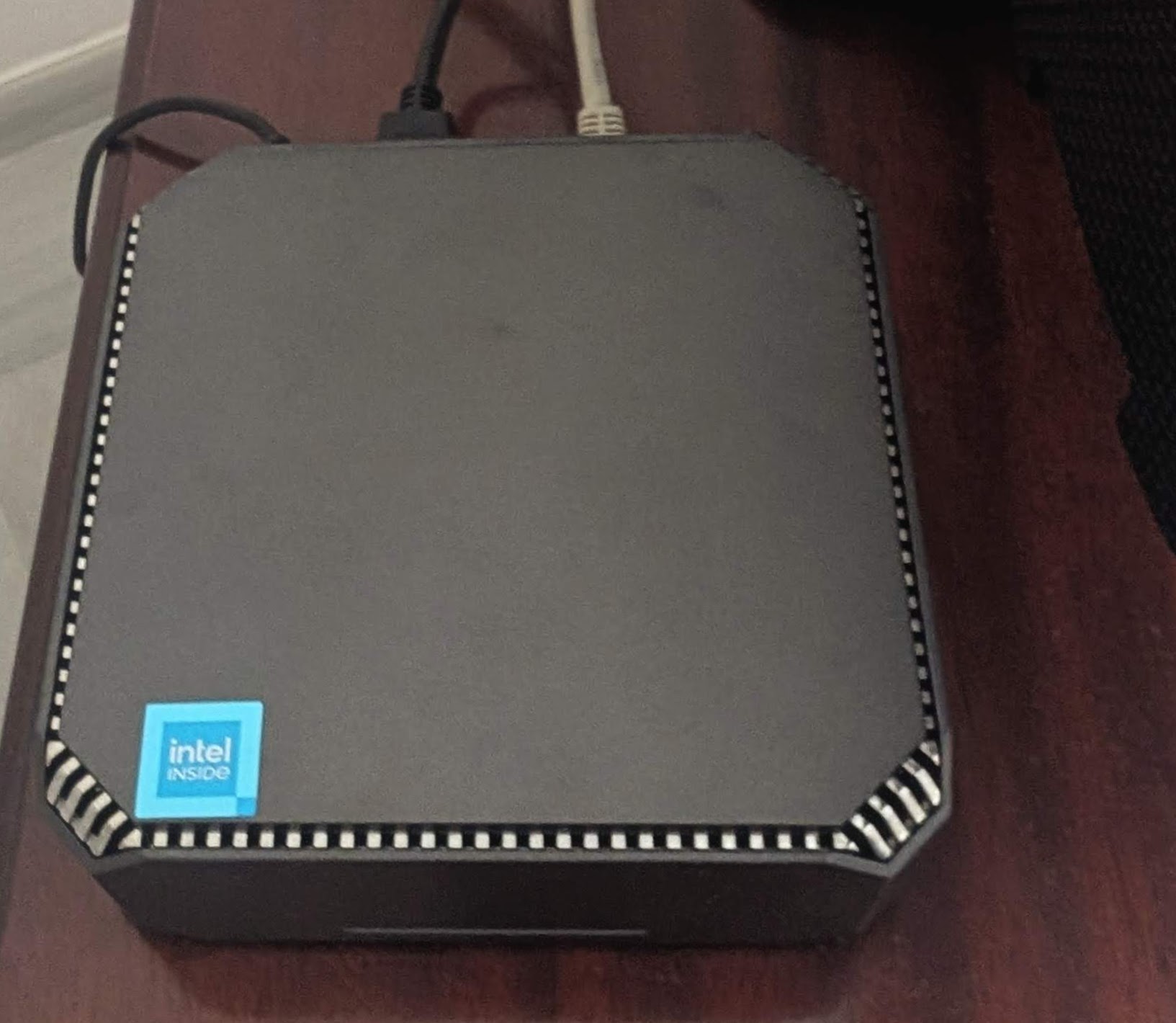 FireBat AK2 Plus
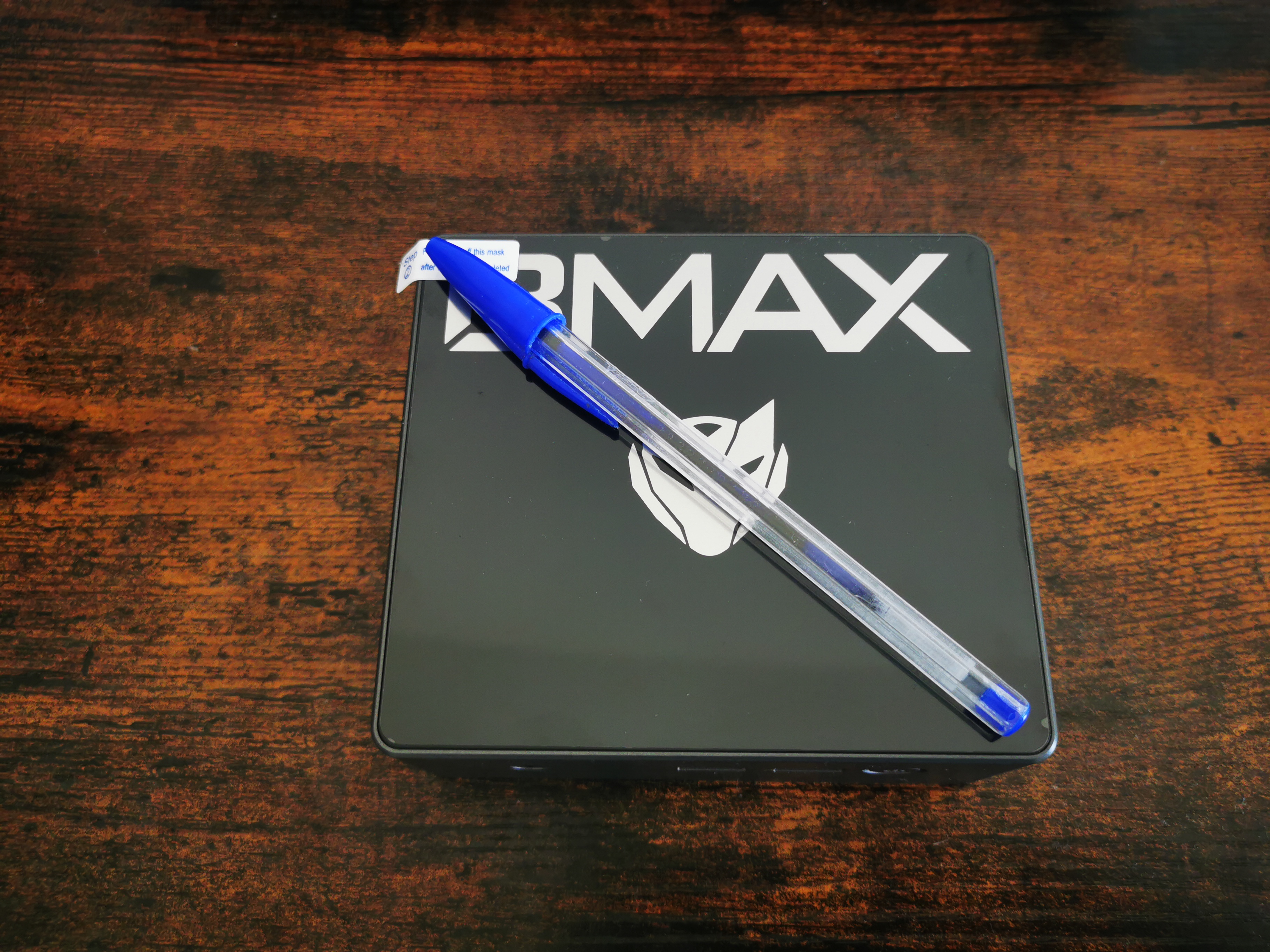 BMax B4 MiniPC Review
GPU Benchmark
For other tasks, having a decent GPU is key, for example if you want to play a lot of media.
Forget about 4k playback with the Pi 4’s.
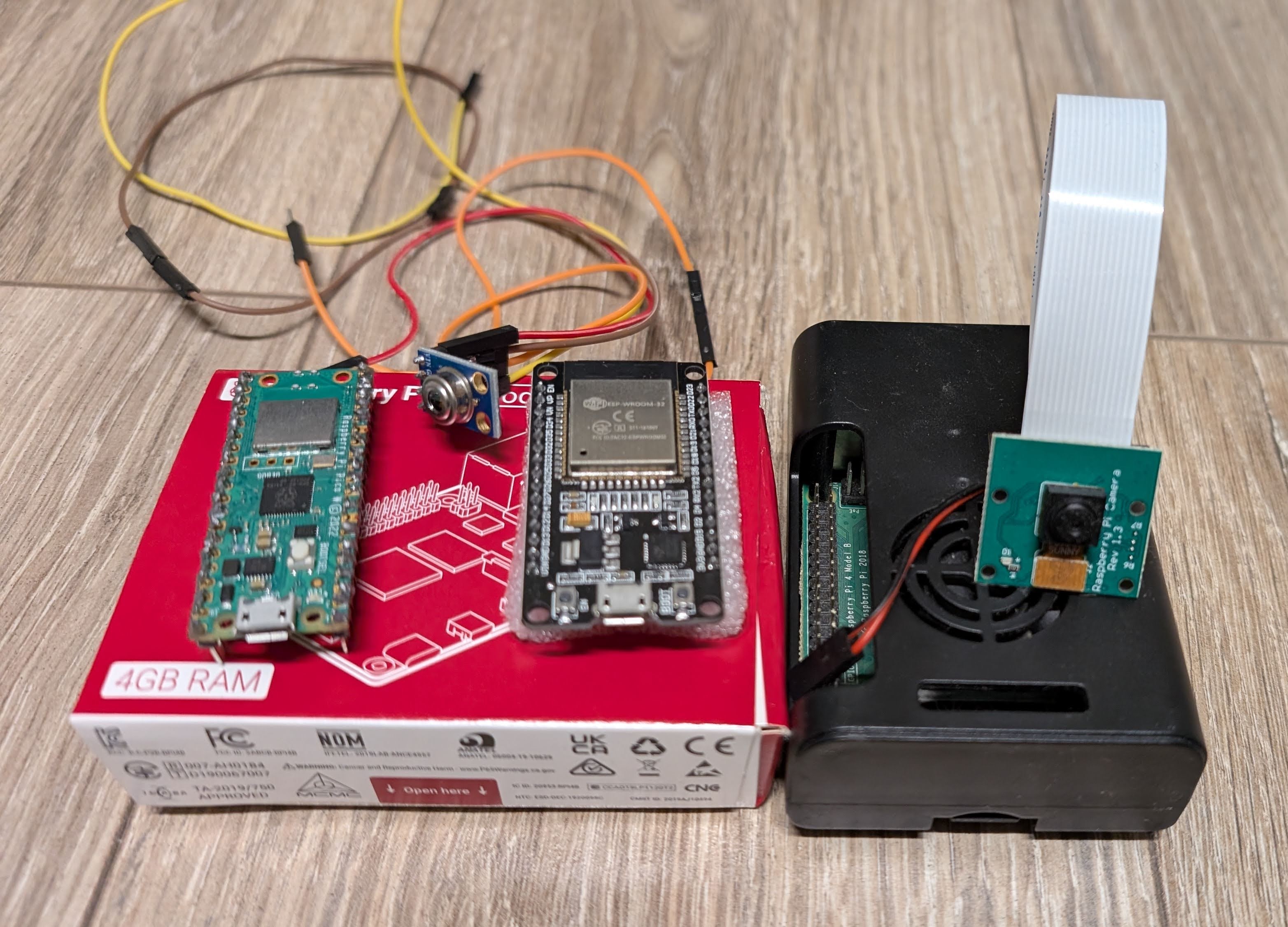 Raspberry Pi and IoT 101
 Raspberry Pi and IoT 101
Get a Pi if you want to do IoT Projects instead, they have great I/O for sensors.
With a x86 MiniPCs/old laptop you are good to go for video tasks.
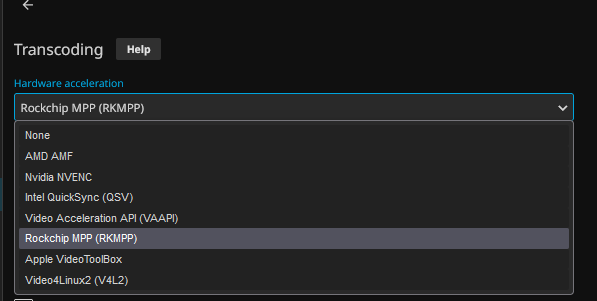
Also, the Orange Pi 5 and the RockChip can handdle Jellyfin video streaming (with proper configuration).
Internet Benchmark
For a networking benchmark, you will probably need:
ip addr show
hostname -I

#sudo apt-get install net-tools
#ifconfig
#ifconfig eth0 | grep -A 10 "<global>" #check mac, and transfered packages
ifconfig eth0 | grep "inet " | awk '{ print $2 }' #if ETH Connected - SEE THE LOCAL IP
#ifconfig tailscale0 | grep "inet " | awk '{ print $2 }' #for Tailscale

ping -c 4 192.168.0.1 #gateway
ping -c 4 192.168.0.117 #ping the orange pi which is connected to same device
ping 9.9.9.9 #ping quad9 dns server
Ideally, do this with ethernet connection:
sudo apt-get install speedtest-cli
speedtest-cli #speedtest-cli --simple

sudo snap install fast
fast
#npm install --global fast-cli && fast
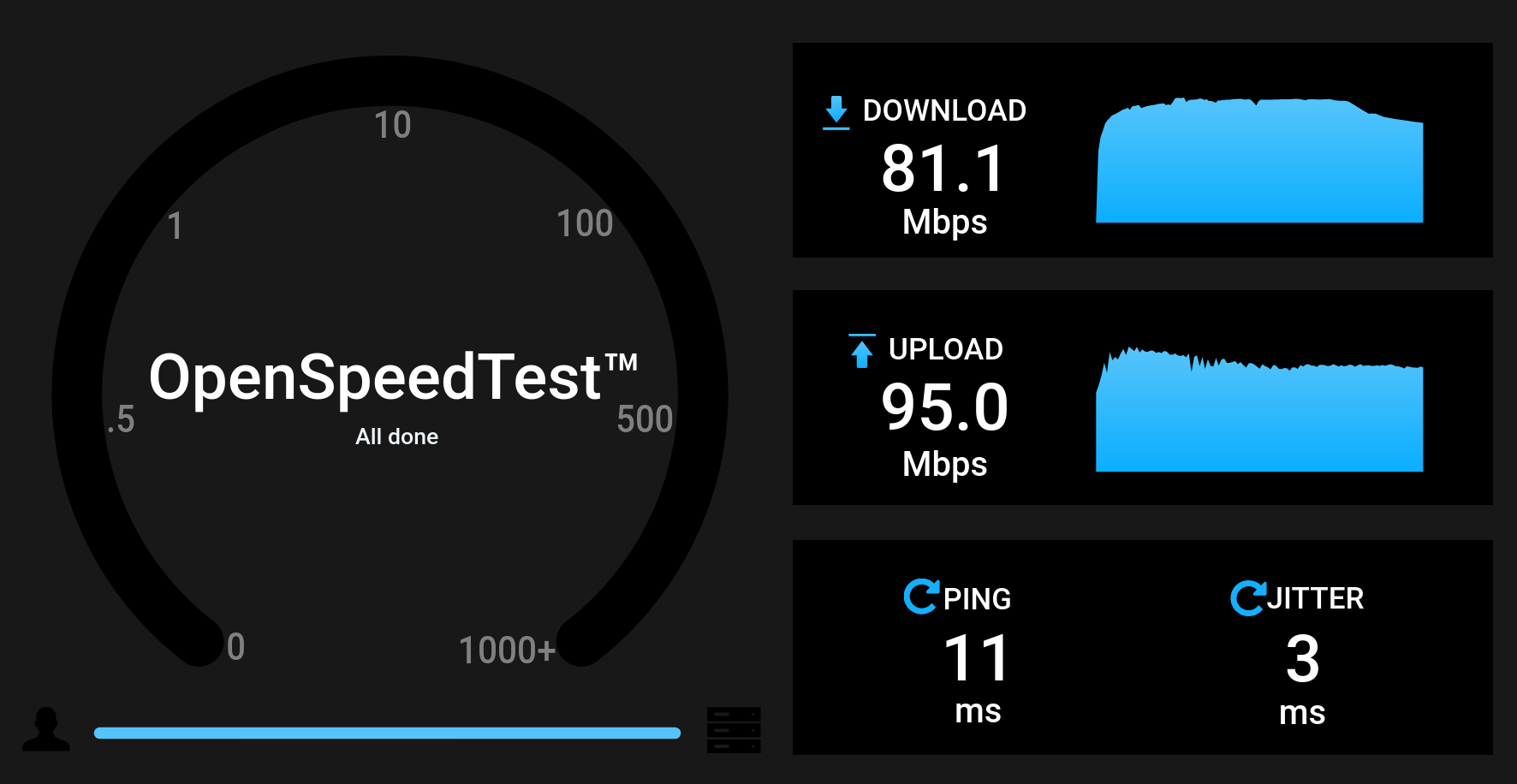
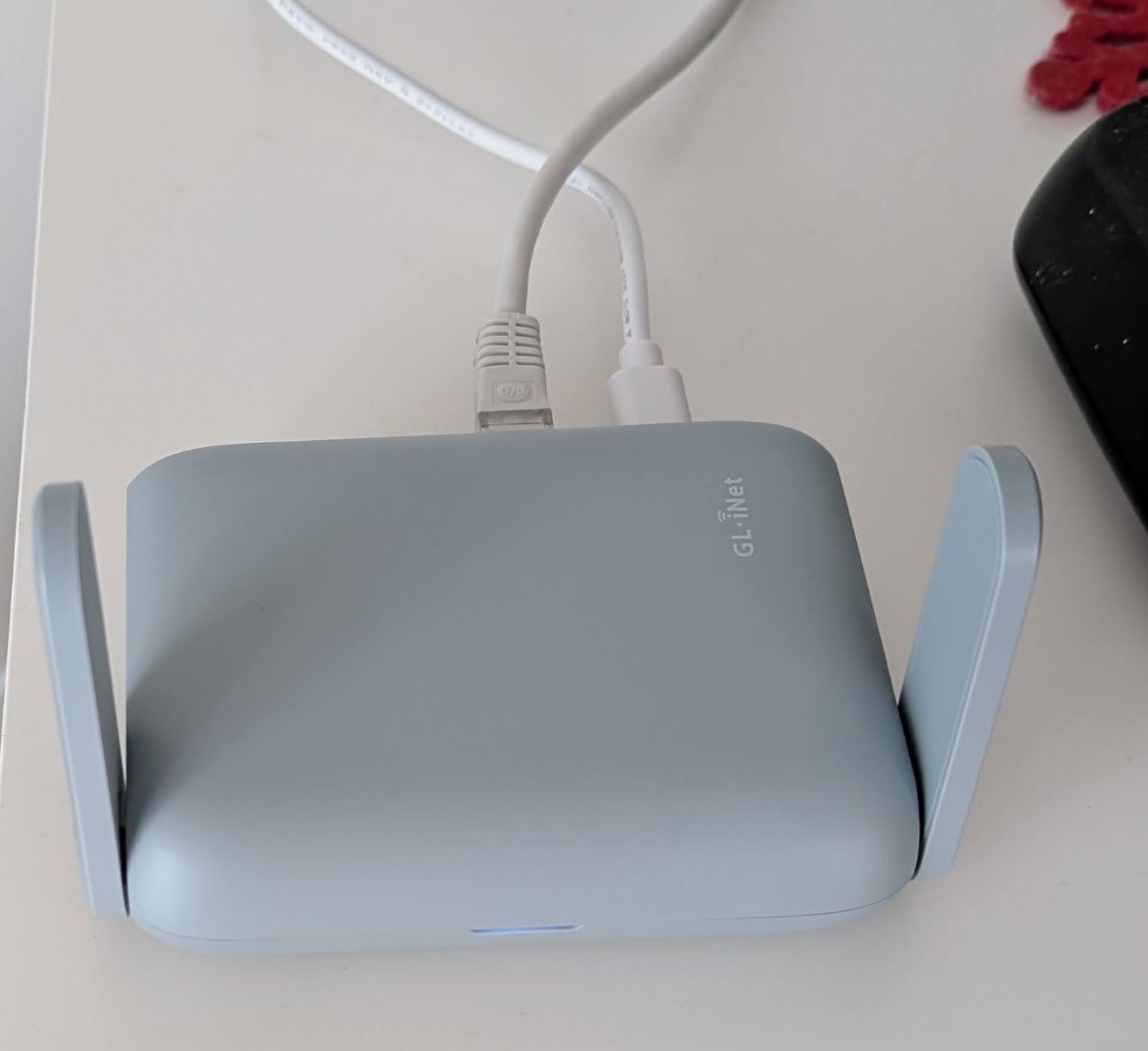
PCs are great, but even better with proper internet connectivity:
Check devices in local network:
#sudo apt install nast nmap

sudo nast -m
nmap -sP 192.168.0.1/24 | grep "scan"
Or simply check devices connected to the same router with:
arp -a
#ip neigh
Local Network examples:
- Pi4 4GB arm64 -
192.168.0.155 - Pi4 2GB arm43 -
192.168.0.232 - x13
192.168.0.124
Test the connectivity between local devices with iperf3: I got ~730Mbits/s
sudo apt update
sudo apt install iperf3
#iperf3 -s #on the server
iperf3 -c 192.168.0.12 #on the other device pointing to your server

#nmcli connection show #check connection status
See with whom are you transferring data and how much:
sudo apt install iftop
sudo iftop
See also Portchecker
Portchecker.io is a free online utility to check the port status of a given hostname or IP address.
Disk Benchmarks
Another very important part that affects the performance, the drives:
sudo lshw -C disk  # You'll need sudo and to filter for disks
sudo hdparm -I /dev/sda  # Example for /dev/sda (detailed info of the disk)
sudo apt install ntfs-3g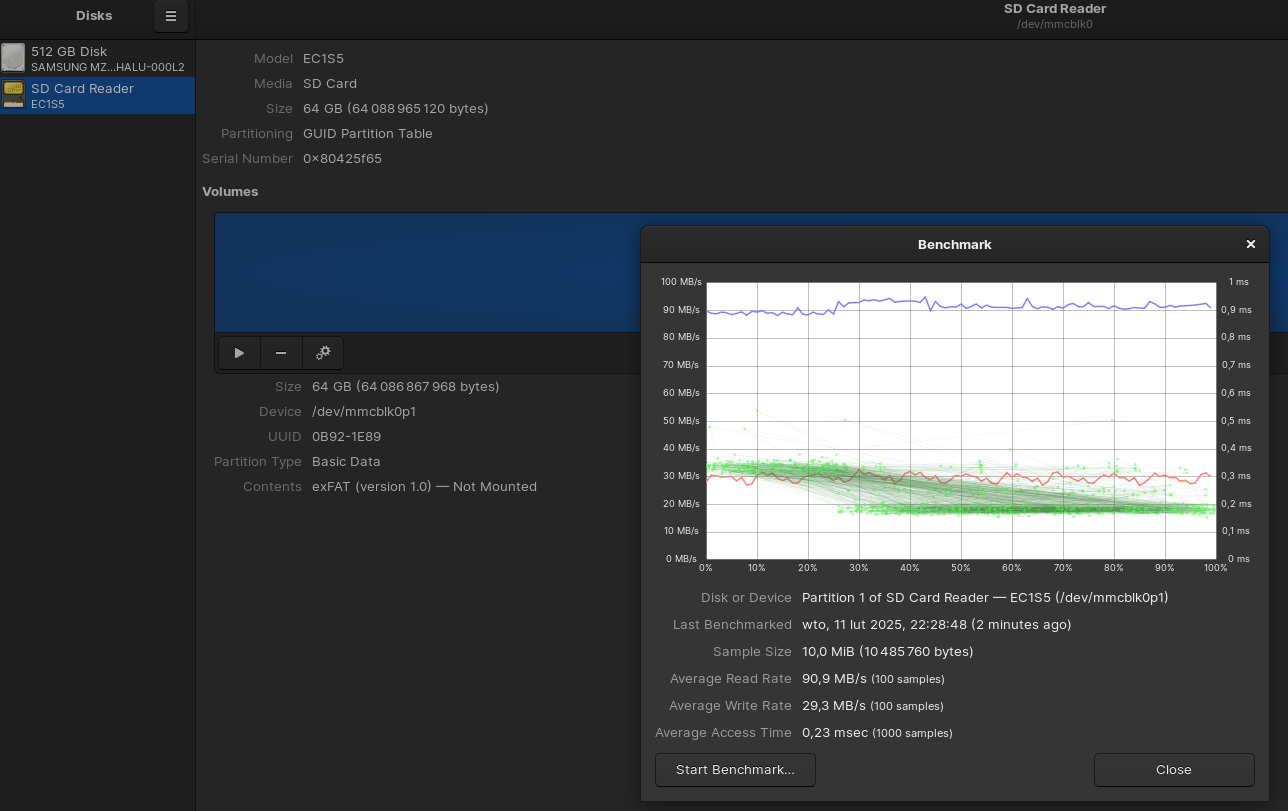
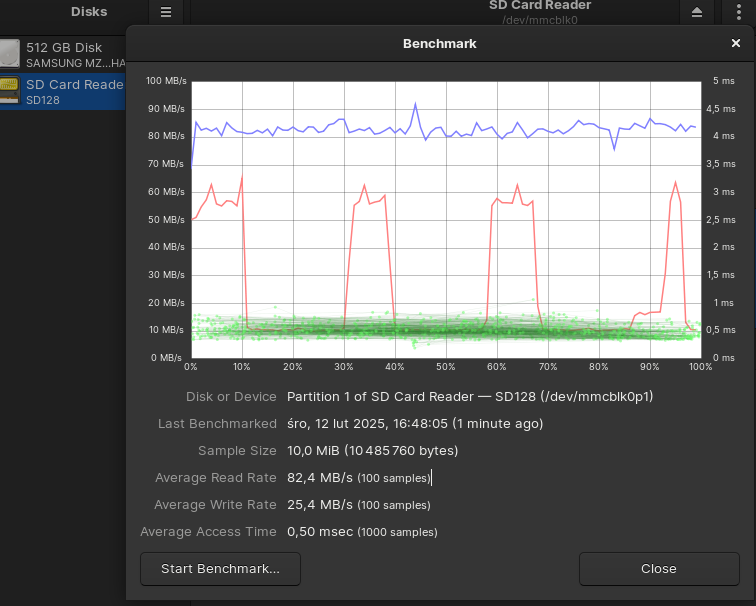
Space for Home Lab
df -h | awk '$2 ~ /G/'
#df -h | awk '$2 ~ /G/' | sort -rh -k 2 #sorted
df -h | awk '$5 > "5G" {print $0}' #list the partitions greater than 5GB

#gio trash --empty
#du -sh ~/.local/share/Trash/files
MOUNT Drives Properly! 📌
lsblk #list them again
lsblk -f /dev/sda1 /dev/sdb2 #see the format and the UUID of a couple of blocks
df -h /dev/sda1 #you will see if its mounted (it always starts with /dev)
#df -h | awk '$2 ~ /G/'
#df -h | awk '$2 ~ /T/'
df -h | grep '[GT]' #see both
sudo apt install ntfs-3g
sudo nano /etc/fstab #forever
UUID=some-uuid /mnt/data_ntfs_500 ntfs-3g defaults,uid=1000,gid=1000,umask=0022 0 1
UUID=some-uuid-of-your-drive /mnt/ext4_mount_point_folder ext4 defaults 0 1For one time mount:
sudo mkdir -p /mnt/data_ntfs_500
sudo mount -t ntfs /dev/sda1 /mnt/data_ntfs_500/ #example with ntfs

sudo mkdir -p /mnt/data_ext_2tb
sudo mount -t ext4 /dev/sdb2 /mnt/data_ext_2tb/ #example with ext4
Mounting the Crucial 500gb (CT500MX5) - Example 1
sudo mkdir /mnt/crucial500
lsblk -f
sudo mount /dev/sdb1 /mnt/crucial500
Systematically mount:
lsblk #its sdc1
sudo blkid /dev/sdc1 # Replace /dev/sdb1 with your actual partition

#get UUID="f....."
#UUID="your-uuid-here" /mnt/crucial500 ext4 defaults 0 2
##UUID="your-uuid-here" /mnt/crucial500 ext4 defaults 0 2
##UUID="your-uuid-here" /media/jalcocert/Backup2TB ntfs-3g defaults 0 2

sudo nano /etc/fstab #save
sudo mount -a  # Test the /etc/fstab entry
df -h #check its mounted
This one will be there, even after rebot!
Format a drive (CT1000MX):
# sudo apt install gparted  # If you don't have it
# gparted
lsblk
#sudo fdisk /dev/sda1 #partition to be created, sda1
sudo mkfs.ext4 /dev/sda1 #make sure its sda1 the partition you need to erase to EXt4!!

#then mount it
sudo nano /etc/fstab #save
###UUID="8674c809-fb02-4e46-948d-4bac1a219374" /mnt/crucial1000gb ext4 defaults 0 2
sudo mount -a  # Test the /etc/fstab entry
df -h #see it mounted
If you havent done it in a while, make some clean up:
docker builder prune
#docker system prune -a
docker volume prune
docker image prune -a
Consumption
The x13 when in idle is ~10W:
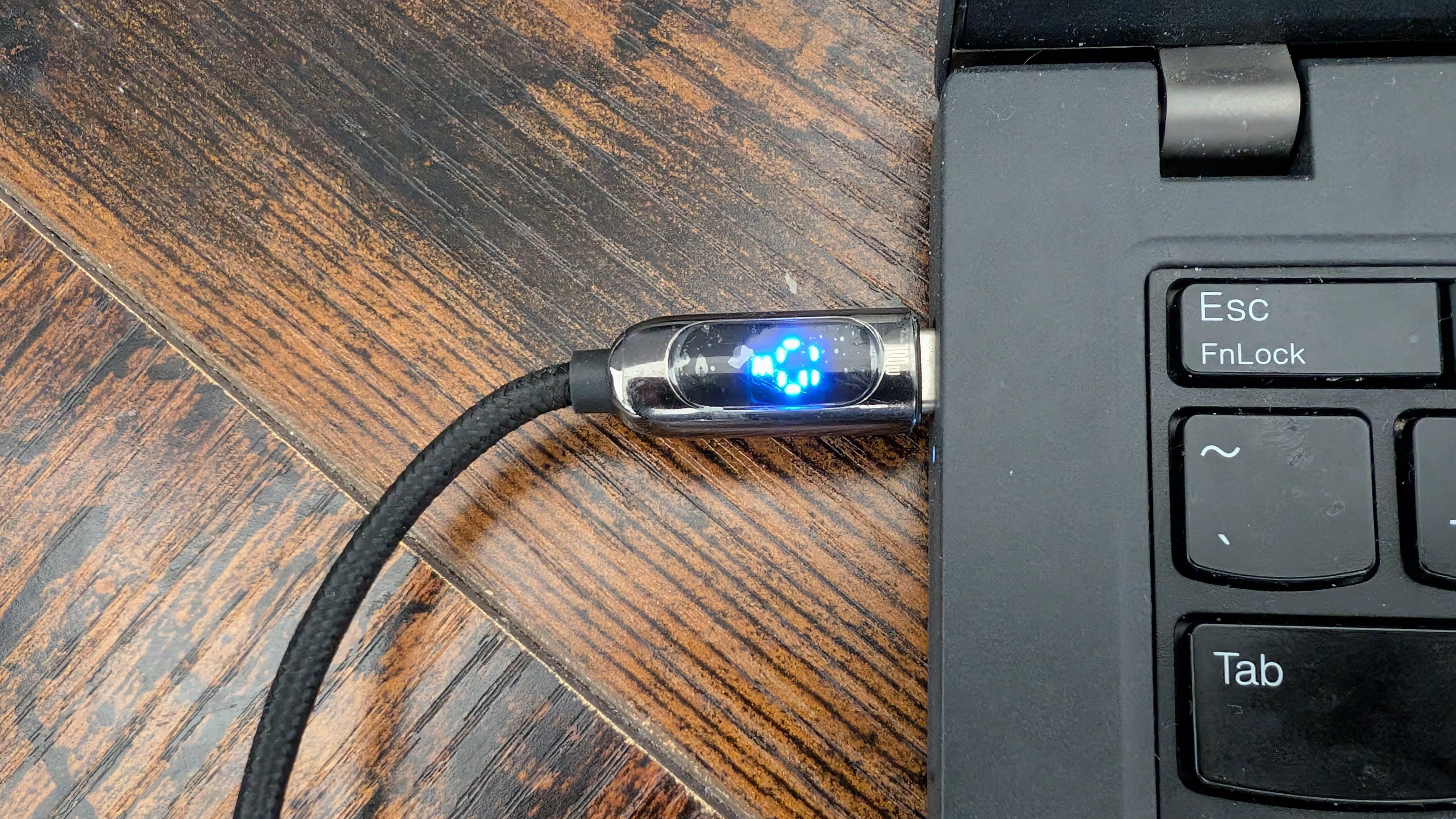
The Pi4 (4GB), is around ~8C above air temperature:
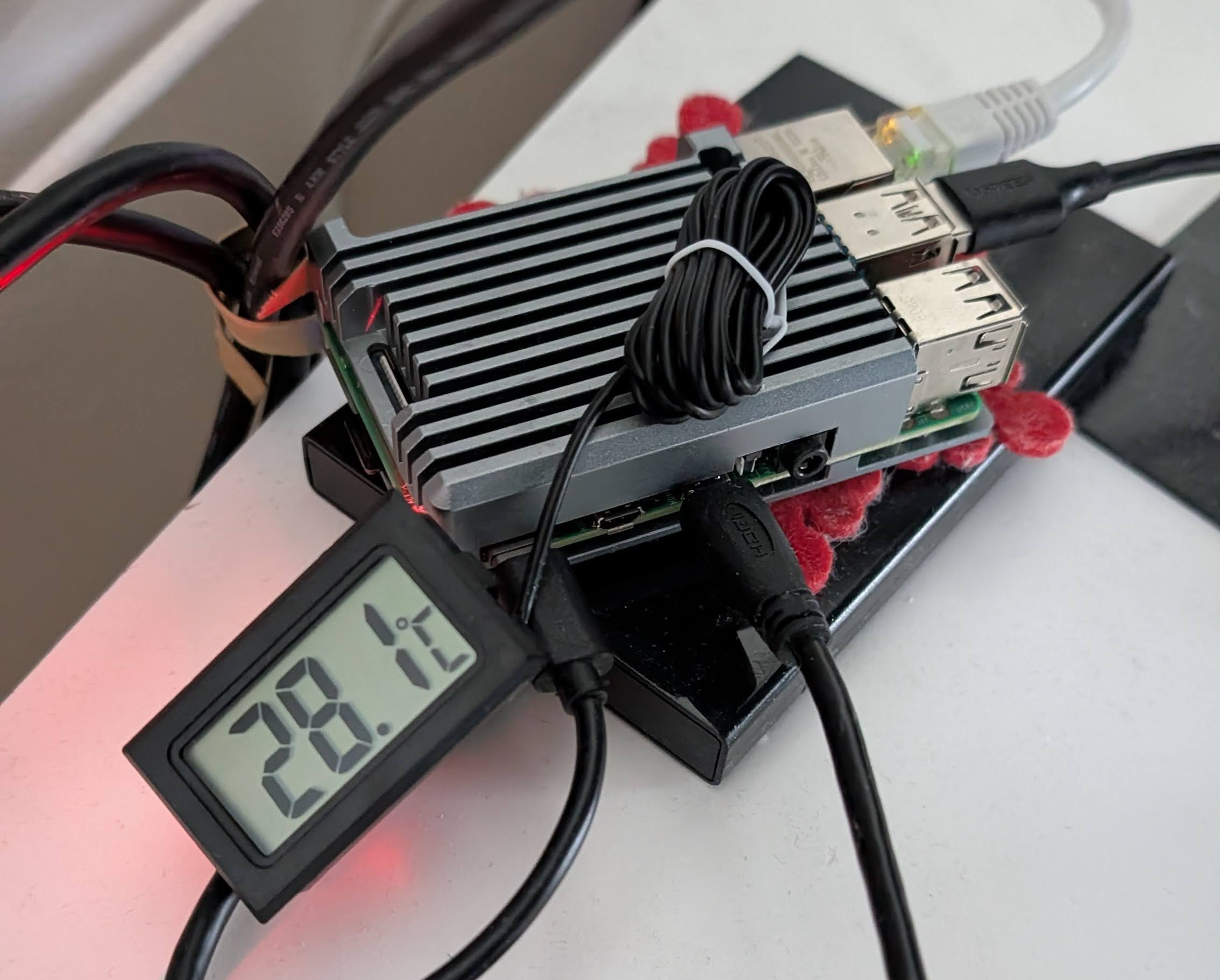
Due to the typical ~4W that consumes (together with the external SSD).
An additional SSD to the Pi accounts for ~1W, as observed when adding an extra drive.
The x300 during ~idle, will do ~14w when using linux, or…>25w when in windows 11:
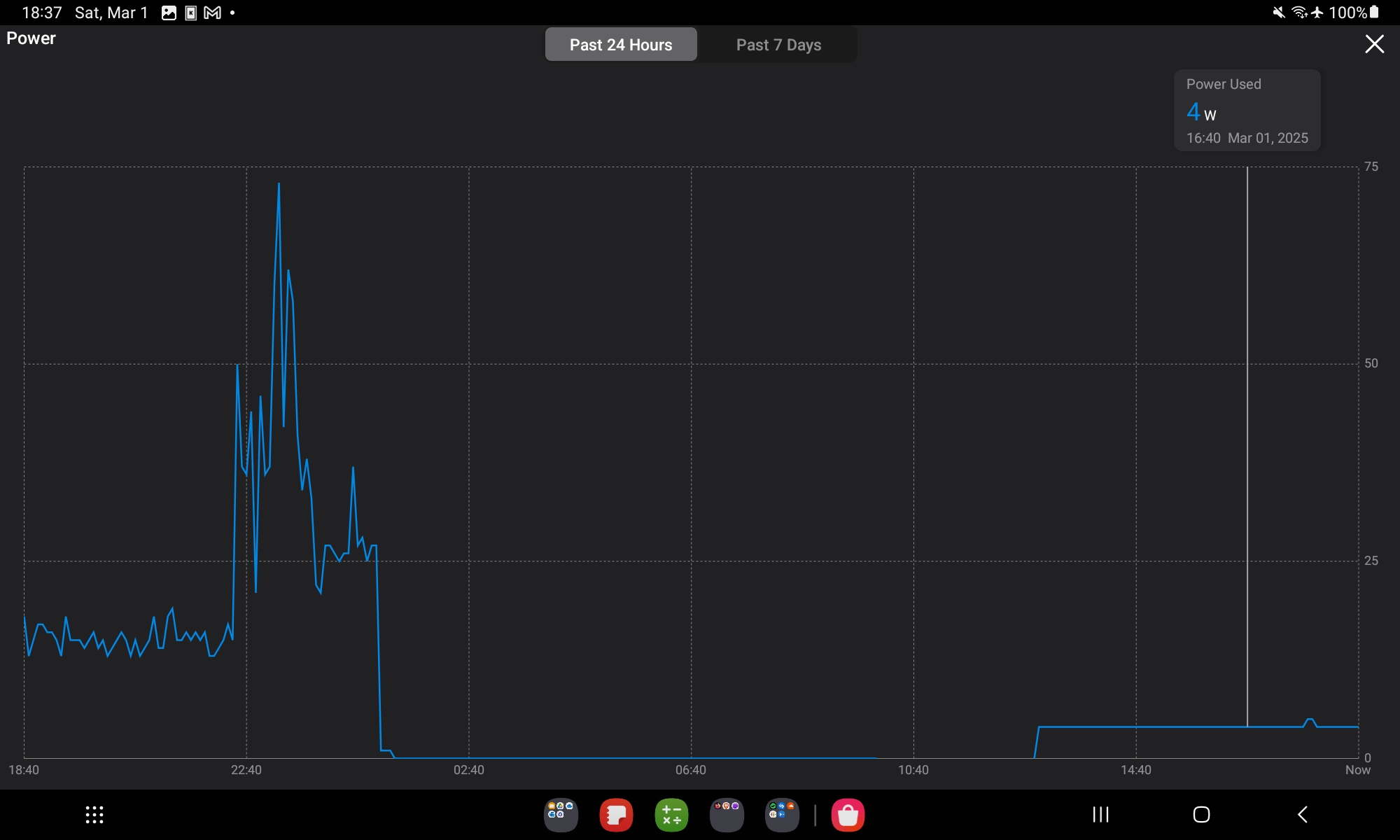
As per this Tapo Smart Plug
Mr. Doors, pleaze…
Conclusions
Now you have some more information to help you decide what to get.
Balance between: space / consumption / power required…
As of today, I’d say that 99% of the tasks we do with a PC could be done with one of those SFF PCs or with the x13.
If you are spending >500$ into tech, ask yourself first what are you supposed to do with that first.
Powering Local AI: with iGPUs