ESP32 x NodeRed
https://github.com/micropython/micropython
People are transforming everything to a smart device with a simple ESP
https://www.youtube.com/watch?v=dpU7yZE1PkE
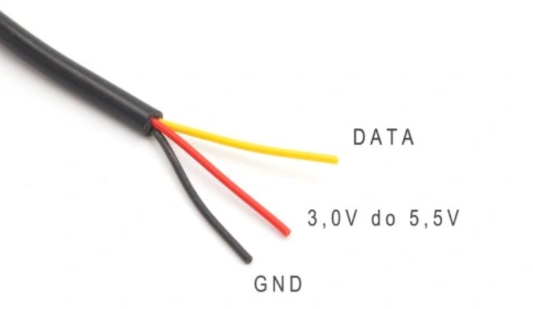
In this project we will be collecting Temperature and Humidity Data from a DHT11 or a DHT22 Sensor working together with a Raspberry Pi.
The data store will be in MongoDB, which will live in a Docker container.
https://www.youtube.com/watch?v=V_mZsiZcy7s
https://www.youtube.com/watch?v=XKQgvmeApjI
https://www.youtube.com/watch?v=g0sRbt8xrbY
The ESP32 and the RPi - Killer Combination
I know this is supposed to be a RPi centered repo and web, but couldn’t resist to add some small project that uses the ESP32.
An interesting tool I found to simulate these projects in the browser is: https://wokwi.com/
Testing ESP32
I have to say thanks to Tomasz and his great content that helped me get started with this: https://www.youtube.com/watch?v=tc3Qnf79Ny8&t=0s
To ‘upload’ the code to the ESP32, please make sure that you have the proper cable (I was expending too many hours because of this).
#include <Arduino.h>

void setup() {
  pinMode(LED_BUILTIN, OUTPUT);
  Serial.begin(921600);
  Serial.println("Hello from the setup");
}

void loop() {
  delay(1000);
  digitalWrite(LED_BUILTIN, HIGH);
  Serial.println("Hello from the loop");
  delay(1000);
  digitalWrite(LED_BUILTIN, LOW);
}
Connecting ESP32 to Wifi
https://www.youtube.com/watch?v=aAG0bp0Q-y4
https://github.com/ttarnowski/esp32-wifi-connect
https://github.com/ttarnowski/esp32-wifi-connect/blob/nonblocking/src/main.cpp
#define WIFI_SSID "wifi_network_name"
#define WIFI_PASSWORD "wifi_password"

void setup() {
  Serial.begin(921600);
  pinMode(LED_BUILTIN, OUTPUT);

  WiFi.begin(WIFI_SSID, WIFI_PASSWORD);

  Serial.println("starting");
}

bool isConnected = false;

void loop() {
  if (WiFi.status() == WL_CONNECTED && !isConnected) {
    Serial.println("Connected");
    digitalWrite(LED_BUILTIN, HIGH);
    isConnected = true;
  }

  if (WiFi.status() != WL_CONNECTED) {
    Serial.println(".");
    digitalWrite(LED_BUILTIN, !digitalRead(LED_BUILTIN));
    delay(1000);
    isConnected = false;
  }
}
ESP32 and DHT11
A note on breadboards first: https://www.youtube.com/watch?v=mE33WpRWrXs
With Arduino IDE
//Incluimos las librerias
#include "DHTesp.h"
//Decaramos el variable que almacena el pin a conectar el DHT11
int pinDHT = 15;
//Instanciamos el DHT
DHTesp dht;
void setup() {
  Serial.begin(115200);
  //Inicializamos el dht
  dht.setup(pinDHT, DHTesp::DHT11);
}
void loop() {
  //Obtenemos el arreglo de datos (humedad y temperatura)
  TempAndHumidity data = dht.getTempAndHumidity();
  //Mostramos los datos de la temperatura y humedad
  Serial.println("Temperatura: " + String(data.temperature, 2) + "°C");
  Serial.println("Humedad: " + String(data.humidity, 1) + "%");
  Serial.println("---");
  delay(1000);
}
Dont forget to include the libraries: Tools -> Manage Libraries -> DHT sensor library for ESPx
With VScode and PlatformIO
I recommend you also the Serial Monitor extension
Sending DHT11 Data to Arduino Cloud
You can create an account: https://cloud.arduino.cc/home/
/*
  Sketch generated by the Arduino IoT Cloud Thing "Untitled"
  https://create.arduino.cc/cloud/things/b8c0b8a9-a659-48d5-aa57-0c6028a5d734

  Arduino IoT Cloud Variables description

  The following variables are automatically generated and updated when changes are made to the Thing

  CloudLight led;
  CloudRelativeHumidity humidity;
  CloudTemperature temperature;

  Variables which are marked as READ/WRITE in the Cloud Thing will also have functions
  which are called when their values are changed from the Dashboard.
  These functions are generated with the Thing and added at the end of this sketch.
*/

#include "thingProperties.h"
#include "DHT.h"

#define DHTPIN 15

#define DHTTYPE DHT11

DHT dht(DHTPIN, DHTTYPE);


void setup() {
  // Initialize serial and wait for port to open:
  Serial.begin(9600);

  pinMode(2,OUTPUT);
  // This delay gives the chance to wait for a Serial Monitor without blocking if none is found
  delay(1500);

  dht.begin();

  // Defined in thingProperties.h
  initProperties();

  // Connect to Arduino IoT Cloud
  ArduinoCloud.begin(ArduinoIoTPreferredConnection);

  /*
     The following function allows you to obtain more information
     related to the state of network and IoT Cloud connection and errors
     the higher number the more granular information you’ll get.
     The default is 0 (only errors).
     Maximum is 4
 */
  setDebugMessageLevel(2);
  ArduinoCloud.printDebugInfo();
}

void loop() {
  ArduinoCloud.update();
  // Your code here
  DHT_SENSOR_READ();


}


/*
  Since Led is READ_WRITE variable, onLedChange() is
  executed every time a new value is received from IoT Cloud.
*/
void onLedChange()  {
  // Add your code here to act upon Led change
  if(led == 1)
  {
    digitalWrite(2,HIGH);
  }
  else
  {
    digitalWrite(2,LOW);
  }
}


void DHT_SENSOR_READ()
{

  float h = dht.readHumidity();
  float t = dht.readTemperature();

  temperature = t;
  humidity = h;

  Serial.print("Temperature - "); Serial.println(t);
  Serial.print("Humidity - "); Serial.println(h);
  delay(2000);

}
DHT11 - Blink IoT Platform
ESP32 with AWS
ESP32 GPIO pins in real-time with AWS API Gateway WebSockets
https://www.youtube.com/watch?v=z53MkVFOnIo
- PlatformIO project with ESP32 WebSocket Client (C/C++)
- Serverless Framework project utilizing AWS API Gateway WebSockets, AWS Lambda, and AWS DynamoDB to handle the communication between clients (TypeScript)
- Web Application to control ESP32 from the browser (ReactJS)
Industry 4.0 and the MQTT Protocol
You can have have the industry 4.0 at home:
Open a web browser and navigate to http://raspberry_pi_ip:1880
Replace raspberry_pi_ip with your Raspberry Pi’s IP address
You should see the Node-RED user interface.
MQTT with the RPi and ESP32
MosquiTTO
This video and this post were helpful to get started.
You can install mosquitto baremetal like:
sudo apt install -y mosquitto
sudo apt install -y mosquitto-clients

#sudo apt install python3-pip
sudo pip3 install paho-mqtt

sudo systemctl status mosquitto.service
But hey, you have the containers…
Publish sample data (from the RPi to the Rpi): https://github.com/jiteshsaini/mqtt-demo/blob/main/rpi_mqtt_clients/client_pub.py
import time
import paho.mqtt.client as mqtt


def on_publish(client, userdata, mid):
    print("message published")


client = mqtt.Client("rpi_client2") #this name should be unique
client.on_publish = on_publish
client.connect('127.0.0.1',1883)
# start a new thread
client.loop_start()

k=0
while True:
    k=k+1
    if(k>20):
        k=1

    try:
        msg =str(k)
        pubMsg = client.publish(
            topic='rpi/broadcast',
            payload=msg.encode('utf-8'),
            qos=0,
        )
        pubMsg.wait_for_publish()
        print(pubMsg.is_published())

    except Exception as e:
        print(e)

    time.sleep(2)
This will receive the sample data when both scripts are running- (in the RPi): https://github.com/jiteshsaini/mqtt-demo/blob/main/rpi_mqtt_clients/client_sub.py
import paho.mqtt.client as mqtt
import time

def on_connect(client, userdata, flags, rc):
   global flag_connected
   flag_connected = 1
   client_subscriptions(client)
   print("Connected to MQTT server")

def on_disconnect(client, userdata, rc):
   global flag_connected
   flag_connected = 0
   print("Disconnected from MQTT server")

# a callback functions
def callback_esp32_sensor1(client, userdata, msg):
    print('ESP sensor1 data: ', msg.payload.decode('utf-8'))


def callback_esp32_sensor2(client, userdata, msg):
    print('ESP sensor2 data: ', str(msg.payload.decode('utf-8')))

def callback_rpi_broadcast(client, userdata, msg):
    print('RPi Broadcast message:  ', str(msg.payload.decode('utf-8')))

def client_subscriptions(client):
    client.subscribe("esp32/#")
    client.subscribe("rpi/broadcast")

client = mqtt.Client("rpi_client1") #this should be a unique name
flag_connected = 0

client.on_connect = on_connect
client.on_disconnect = on_disconnect
client.message_callback_add('esp32/sensor1', callback_esp32_sensor1)
client.message_callback_add('esp32/sensor2', callback_esp32_sensor2)
client.message_callback_add('rpi/broadcast', callback_rpi_broadcast)
client.connect('127.0.0.1',1883)
# start a new thread
client.loop_start()
client_subscriptions(client)
print("......client setup complete............")


while True:
    time.sleep(4)
    if (flag_connected != 1):
        print("trying to connect MQTT server..")
Now, to publish data from the ESP32: https://github.com/jiteshsaini/mqtt-demo/blob/main/esp32_clients/esp_mqtt_client1/esp_mqtt_client1.ino
You will need https://registry.platformio.org/libraries/knolleary/PubSubClient/installation in the platformio.ini as
lib_deps = knolleary/PubSubClient@^2.8
/*********
  Author: Jitesh Saini
  This code is built upon the example code in pubsubclient library
  Complete project details at https://helloworld.co.in
*********/

#include <WiFi.h>
#include <PubSubClient.h>

// Replace the SSID/Password details as per your wifi router
const char* ssid = "yourSSID";
const char* password = "yourPassword";

// Replace your MQTT Broker IP address here:
const char* mqtt_server = "192.168.1.45";

WiFiClient espClient;
PubSubClient client(espClient);

long lastMsg = 0;

#define ledPin 2

void blink_led(unsigned int times, unsigned int duration){
  for (int i = 0; i < times; i++) {
    digitalWrite(ledPin, HIGH);
    delay(duration);
    digitalWrite(ledPin, LOW);
    delay(200);
  }
}

void setup_wifi() {
  delay(50);
  Serial.println();
  Serial.print("Connecting to ");
  Serial.println(ssid);

  WiFi.begin(ssid, password);

  int c=0;
  while (WiFi.status() != WL_CONNECTED) {
    blink_led(2,200); //blink LED twice (for 200ms ON time) to indicate that wifi not connected
    delay(1000); //
    Serial.print(".");
    c=c+1;
    if(c>10){
        ESP.restart(); //restart ESP after 10 seconds
    }
  }

  Serial.println("");
  Serial.println("WiFi connected");
  Serial.println("IP address: ");
  Serial.println(WiFi.localIP());

}

void connect_mqttServer() {
  // Loop until we're reconnected
  while (!client.connected()) {

        //first check if connected to wifi
        if(WiFi.status() != WL_CONNECTED){
          //if not connected, then first connect to wifi
          setup_wifi();
        }

        //now attemt to connect to MQTT server
        Serial.print("Attempting MQTT connection...");
        // Attempt to connect
        if (client.connect("ESP32_client1")) { // Change the name of client here if multiple ESP32 are connected
          //attempt successful
          Serial.println("connected");
          // Subscribe to topics here
          client.subscribe("rpi/broadcast");
          //client.subscribe("rpi/xyz"); //subscribe more topics here

        }
        else {
          //attempt not successful
          Serial.print("failed, rc=");
          Serial.print(client.state());
          Serial.println(" trying again in 2 seconds");

          blink_led(3,200); //blink LED three times (200ms on duration) to show that MQTT server connection attempt failed
          // Wait 2 seconds before retrying
          delay(2000);
        }
  }

}

//this function will be executed whenever there is data available on subscribed topics
void callback(char* topic, byte* message, unsigned int length) {
  Serial.print("Message arrived on topic: ");
  Serial.print(topic);
  Serial.print(". Message: ");
  String messageTemp;

  for (int i = 0; i < length; i++) {
    Serial.print((char)message[i]);
    messageTemp += (char)message[i];
  }
  Serial.println();

  // Check if a message is received on the topic "rpi/broadcast"
  if (String(topic) == "rpi/broadcast") {
      if(messageTemp == "10"){
        Serial.println("Action: blink LED");
        blink_led(1,1250); //blink LED once (for 1250ms ON time)
      }
  }

  //Similarly add more if statements to check for other subscribed topics
}

void setup() {
  pinMode(ledPin, OUTPUT);
  Serial.begin(115200);

  setup_wifi();
  client.setServer(mqtt_server,1883);//1883 is the default port for MQTT server
  client.setCallback(callback);
}

void loop() {

  if (!client.connected()) {
    connect_mqttServer();
  }

  client.loop();

  long now = millis();
  if (now - lastMsg > 4000) {
    lastMsg = now;

    client.publish("esp32/sensor1", "88"); //topic name (to which this ESP32 publishes its data). 88 is the dummy value.

  }

}
https://www.youtube.com/watch?v=Q2HL8rwZ20A
Another try mqtt ESP32
https://www.youtube.com/watch?v=x5A5S0hoyJ0&t=211s
ESP32 + MLX90614
https://www.youtube.com/watch?v=HpsvNIAtjm4
car battery
https://www.youtube.com/watch?v=VnGRFwDrLHo
Other Projects
Intro: [IoT] Ansible and Raspberry Pi
So you have a Raspberry Pi and want to get started with IoT Project.
But let me guess, you dont have time to read all the Docs, you just want to connect the wirings and get the Data Flowing.
If that resonates with you, keep reading - I will show you how to leverage Ansible.
Ansible is an automation tool that PROS are using all around and it can Spin up with one liners your IoT Projects with the RPi.
Yep, still, you will have to connect the cables 😝
Ansible with Raspberry Pi
- Get a Pi :)
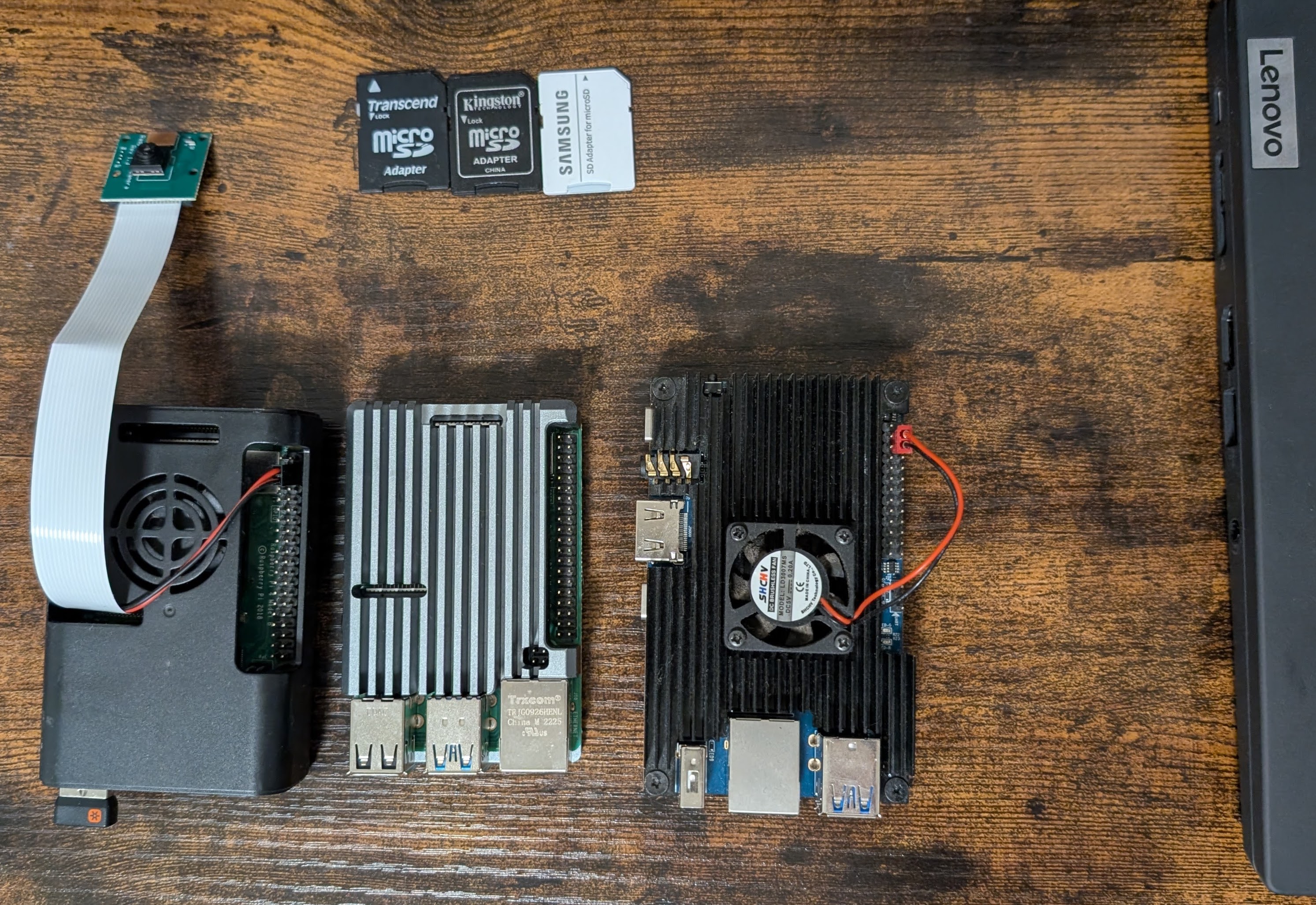
Get Raspbian Installed
Install Ansible - Just like you would in any other Debian.
#sudo apt update
#sudo apt upgrade
sudo apt install ansible

#ansible --version- Clone this Repo
git clone https://github.com/JAlcocerT/RPi ./RPi
#cd ./RPi/Z_ansible
So this is it from the Setup side. Now choose the IoT Project you want to have running and execute just one more command.
IoT Projects with Ansible
Mongo Project
Im Talking about: Raspberry Pi - DHT to MongoDB
So you want to have the project that pulls data from DHT11 or DHT22, sends it from Python to Mongo and then Display it in Metabase?
No issues, just execute:
ansible-playbook ./RPi/Z_ansible/Ansible_py_dht_mongo_arm32.yml -i inventory.ini #execute Meta Project Playbook
#ansible-playbook ./RPi/Z_ansible/Ansible_py_dht_mongo_arm64.yml -i inventory.ini #execute Meta Project Playbook


#docker-compose -f ./RPi/Z_IoT/DHT-to-MongoDB/Ansible_py_dht_mongo_arm64.yml up -d # Basically it spins up Docker and This Stack
You can always get inside the created containers with:
docker exec -it mongodb sh
docker exec -it dht_sensor_mongo sh
Working for me on RaspiOS Bullseye, not in Bookworm due to Adafruit not detecting the platform properly.
Influx Project
ansible-playbook ./RPi/Z_ansible/Ansible_py_dht_influx_grafana.yml -i inventory.ini #execute Influx Project PlaybookThis is the one - Raspberry Pi - DHT to InfluxDB. There is a GHCR Image too https://github.com/JAlcocerT/RPi/blob/main/.github/workflows/python-dht-build.yml
FAQ
Containers? What’s that?
Container are a way to encapsule all Software Project dependencies.
For example to encapsule: MongoDB, Influx or the Python Script with all the libraries installed at a specified version.
To run containers, Ansible is actually using Docker.
You can check the installed versions with:
docker --version
docker-compose --version
Why Ansible for SelfHosting?
Because it as a powerful Automation Tool that the Pros are using to do crazy stuff with the cloud.
Why shouldnt we do it with our Pi’s?
Why Docker for SelfHosting?
https://jalcocert.github.io/RPi/posts/selfhosting-with-docker/
You can also try containers with Podman
How to Find proper RPi Pins?
It works for few other microcontrollers as well, bookmark this one!
Kodi
with kodi adons
GPS Tracker
https://www.traccar.org/docker/ https://github.com/traccar/traccar-docker
HA
https://github.com/tevonsb/homeassistant-mcp
ESP32 HA + Batteries
https://www.youtube.com/watch?v=aR044Dk6c_0
ESP32 HA w ESPHome
ESPHome is a system to control your microcontrollers by simple yet powerful configuration files and control them remotely through Home Automation systems.
https://github.com/esphome/esphome
https://www.youtube.com/watch?v=pBT5p5XaWNE
Beginner DIY ESPHome mmWave Presence Sensor | HLK-LD2450 + ESP32 https://www.youtube.com/watch?v=cPac-9K2xEc
Pico DHT22
https://www.youtube.com/watch?v=eNF3X3D0cH4
https://github.com/neeraj95575/Temperature-sensor-connect-to-raspberry-pi-pico
ESP DHT22
GND VIN (3v3 also works) D23
https://registry.platformio.org/libraries/adafruit/DHT%20sensor%20library —> https://github.com/adafruit/DHT-sensor-library
in platformio.ini
adafruit/DHT sensor library@^1.4.4
lib_deps= https://github.com/blynkkk/blynk-library.git https://github.com/adafruit/Adafruit_Sensor https://github.com/adafruit/DHT-sensor-library
in the main.cpp
#include <DHT.h>
https://github.com/adafruit/DHT-sensor-library
not this one: adafruit/Adafruit Unified Sensor@^1.1.13
lib_deps = https://github.com/adafruit/DHT-sensor-library.git
OR
lib_deps = adafruit/DHT sensor library@^1.4.4
MPU acelerometer
There are many 3-axis accelerometers that you can use with the Raspberry Pi Pico. Some of the most popular options include:
MPU-6050: This is a popular and versatile accelerometer that is also compatible with the Raspberry Pi Pico. It has a wide range of features, including a built-in gyroscope.
biblioman09
https://www.youtube.com/watch?v=JXyHuZyqjxU
DSB18B20
-55 to 125C
data to D13
Pi off grid - Solar panels
https://www.reddit.com/r/raspberry_pi/comments/2b0ccl/anyone_running_their_pi_off_of_solar_panels/
HA Security camera
Scrypted
RPi weather station
https://www.youtube.com/watch?v=5JfPzvcm0E8
Hardware for HA
https://forocoches.com/foro/showthread.php?t=6655749
Contenedores docker utilizas - https://forocoches.com/foro/showthread.php?t=7806376
DHT11
arduino cloud b0e2c216-d258-415a-be9e-4b0999dbaff5 YV91RQKZZ8HEKPSZHWA7
DS18B20 - Temp
DTH11 DTH22
https://www.youtube.com/watch?v=ffg3_1AgtyA&t=3s
MQTT on Raspberry Pi and ESP8266 with Mosquitto and Micro Python | IoT Essential
Simple ESP32 IoT Sensor Node Tutorial: WiFi Enabled MQTT Sensor Data Node
TIG Stack:
Easily Install InfluxDB, Telegraf, & Grafana with Docker
Telegraph InfluxDB Grafana
sudo git clone https://github.com/huntabyte/tig-stack ./tig cd tig
openssl rand -hex 32
influxdb login with the ones defined in .env grafana login is admin//admin add data source influxdb -> query language flux http://influxdb:8086 #they are in the same network so they can communicate with the host name
3 buckets found
in influx DB Query Builder
from(bucket: “changeme”) |> range(start: v.timeRangeStart, stop: v.timeRangeStop) |> filter(fn: (r) => r["_measurement"] == “mem”) |> filter(fn: (r) => r["_field"] == “used_percent”) |> aggregateWindow(every: v.windowPeriod, fn: mean, createEmpty: false) |> yield(name: “mean”)
and copy it to grafana
Raspberry Pi IoT Server Tutorial: InfluxDB, MQTT broker (mosquitto), Grafana, Node-RED & Docker
Raspberry Pi IoT Server Tutorial: InfluxDB, MQTT, Grafana, Node-RED & Docker https://learnembeddedsystems.co.uk/easy-raspberry-pi-iot-server
https://sensorsiot.github.io/IOTstack/
https://github.com/SensorsIot/IOTstack
Raspberry Pi IoT Server Tutorial: InfluxDB, MQTT, Grafana, Node-RED & Docker
Continuacion con BME680 (P, T, air quality) https://www.youtube.com/watch?v=x5A5S0hoyJ0
RPI pico
from machine import Pin, Timer, I2C, SoftI2C #from aphanum import ALPHANUM_I2C from mlx90614 import MLX90614_I2C
i2c2 = SoftI2C(scl=Pin(9),sda=Pin(8),freq=100000)
print(“I2C Comm Success”)
d = i2c2.scan()
print(hex(d[0])
print(hex(d[1])
alph = ALPHANUM_I2C(i2c2,0x70,000,15)
print(“Alpha display init”)
irtemp = MLX90614_I2C(i2c2,0x5A)
led1 = Pin(25, Pin.OUT)
timer1 = Timer()
def tick_timer(timer): global led1 led1.toggle() t1 = irtemp.get_temperature(0) t2 = irtemp.get_temperature(1) print(“T1 = %f”, t1) print(“T2 = %f”, t2) alph.set_digit(int(t2*100),2); timer1.init(freq=2,mode=Timer.PERIODIC,callback=tick_timer)