Pixel8 Pro - Tricks with a New Android phone.
I Got a new phone recently.
It promises 7 years of updates.
And have good rating here: https://www.kimovil.com/en/compare-smartphones/ also here
Will it be better value for money than the Xiami PocoPhone F1 I got in 2019 for ~325$?
With the poco, I had available:
What about LineageOS 📌
LineageOS is a free and open-source operating system for smartphones and tablets, based on the Android mobile platform. It is the successor to CyanogenMod, from which it was forked in December 2016.
What is LineageOS?
- Custom Android: LineageOS is essentially a modified version of Android. It takes the open-source code of Android and adds its own customizations and features.
- Community-driven: It’s developed and maintained by a community of developers, rather than a single company like Google or a phone manufacturer.
- Focus on customization: LineageOS is known for its focus on user customization and privacy. It often includes features that aren’t found in the stock version of Android.
- Extending device lifespan: It can breathe new life into older devices that may no longer receive updates from their manufacturers.
Is it Google compatible?
- Mostly yes: LineageOS itself doesn’t come with Google apps (like the Play Store, Gmail, etc.) pre-installed. This is because these apps are proprietary to Google.
- You can add Google services: However, you can usually install Google services and apps separately if you want to use them. This involves a process called “flashing” a Google package (often called “GApps”) onto your device.
- Some limitations: While most Google apps work fine, there might be occasional compatibility issues with some Google services.
What’s the difference with Android?
- Stock Android vs. LineageOS: Think of stock Android as the “vanilla” version of Android, while LineageOS is a customized version with added features and tweaks.
- Key differences:
- Customization: LineageOS typically offers more customization options than stock Android, allowing you to tweak things like themes, icons, and system behavior.
- Features: It may include features not found in stock Android, such as enhanced privacy settings, advanced theming options, and performance improvements.
- Updates: LineageOS often provides updates for devices that are no longer supported by their manufacturers, extending the lifespan of your device.
- Bloatware: LineageOS generally doesn’t include the bloatware (pre-installed, unnecessary apps) that often comes with stock Android from manufacturers.
- Google apps: As mentioned earlier, Google apps are not pre-installed on LineageOS, giving you more control over what apps you have on your device.
In summary: LineageOS is a popular choice for Android enthusiasts who want more control over their devices, more customization options, and a potentially longer lifespan for their older devices.
https://devices.ubuntu-touch.io/device/beryllium/release/xenial/
It was also interesting https://grapheneos.org/usage
Leeeet’s see.
But there would always be time for the Pixel 8 Pro and https://calyxos.org/docs/guide/device-support/
Pixel 8 Pro - How to
Connecting Pixel 8 Pro to HDMI
- Activate developer mode by:
Go to Settings->About phone, scroll all the way down and tap the Build number 7 times. After entering your screen lock, developer options will be enabled.
You can access them from Settings->System->Developer options.
- Then, activate the settings as per: https://www.youtube.com/watch?v=Z0ausMrkrik
you will need to restart and HDMI cable to enjoy :)
Connecting a external drive
Pixel 8 Pro Conclusions
- For photos it is a beast.
And I had a Huawei P30 Pro before.
It can make 8160x4590 photos, which you can apply zoom with easy and not loosing much quality.
I also enjoy the night mode (but make sure to have a tripod).
- For videos, its up to 3840x2160 (4k UHD) at 60 fps and 63.6 Mbit/s bitrate.
Get ready for some serious backup setup!
EDIT: specially as these things happen
- The charging time is not the quickest. It can go up to ~25W.
For comparison, a s6 lite tablet loads at 15w
I like that it charges slow during the night, according to your alarm time.
Its possible not only to connect the Pixel to HDMI, but also to control it with a keyboard like the k400+
It integrates perfectly with google services and its not bloated.
An interesting integration was the recorder app, to their service: https://recorder.google.com/
You might need: https://imei24.com/ or https://www.imei.info/
Fav Apps for the Pixel
Hello from the future!
- The GCam works really nice with the phone.
They have included a cool astro mode recently
- Security
- 2FAS which can be synced with Google Drive and recovers automatically
You can also see Aegis, or Authy (but is not OSS)
- Nextcloud / Immich: to sync your photos or to have a full cloud
TIP
If you are using microsoft authenticator, make sure to have cloud backup enabled for your company stuff.
When adding a new account on the phone, make sure to hit restore from backup (the last option below) instead of just sign in with MCSFT.
You could also make sure to be logged in on those services at a tablet, if you have one.
FAQ
See information about your Android Phone with CPU-Info or with DevCheck
CPU: Tensor G3 (4x Cortex A510 + 4xCortex A715 + 1x Cortex X3) - ARMv8a 64bits
GPU: Mali-G715
Making Android better
Android Apps I love!
But get them…in a cool way:
Thanks to this one I could install Nextcloud App on an old Huawei Android. Add it with
https://github.com/nextcloud/android
Weather
Sound Recorder
CAPod - It works for Airpods Pro and for Sony WF-1000XM3
NFC Tools
Other Android Stuff
Termux
You can also emulate Linux inside Android, like I did with Termux, here.
Running Windows on Android
Running Android on Linux
Waydroid is a software application that allows users to run Android operating systems within a Linux environment.
Here’s a breakdown of what it is and its relationship to Wayland:
What Waydroid is:
- Waydroid uses Linux container (LXC) technology to run a full Android system. This allows Android applications to run on a Linux operating system.
- The goal is to provide a way to run Android apps on Linux with near-native performance.
Waydroid and Wayland:
- Wayland is a communication protocol that specifies the communication between a display server and its clients.
- Waydroid is designed to work within a Wayland environment. This means that it relies on Wayland to display the Android interface and applications.
- A key aspect of Waydroid’s design is its integration with Wayland, which contributes to its performance. Instead of relying on older display server technologies like X11, it takes advantage of Wayland’s modern architecture.
- Essentially Wayland is what Waydroid uses to display the android operating system graphical user interface.
In summary, Waydroid leverages the Wayland display server protocol to provide a smooth and integrated Android experience on Linux systems.
https://github.com/waydroid/waydroidhttps://docs.waydro.id/
The Android runtime environment ships with a minimal customized Android system image based on LineageOS.
See how to install waydroid in linux: https://github.com/Aman9das/Waydroid_Setup_Guide
sudo apt install curl ca-certificates -y

curl -s https://repo.waydro.id | sudo bash

sudo apt install waydroid -y
This will download ~1gb of data.
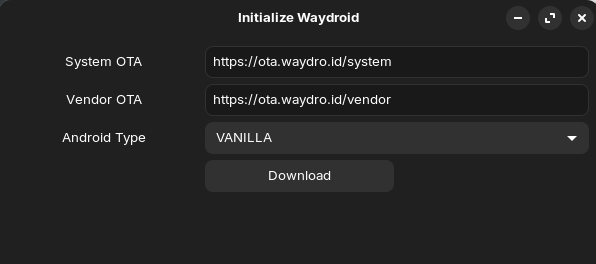
What can you do with Waydroid?
You can install the mentioned F-Droid and/or Obtanium as mentioned above with the Pixel.
Also, you can tell friends to send you their developed Android apks, for example from telegram: /home/jalcocert/.var/app/org.telegram.desktop/data/TelegramDesktop/tdata/temp_data.
cp ~/.var/app/org.telegram.desktop/data/TelegramDesktop/tdata/temp_data/sampleandroidapp.apk ~/Desktop/Then, you can install a browser on waydroid, like duckduckgo and get the file transfered thanks to your local filebrowser instance.
# Initialize Waydroid (choose either 'FULL' for GApps or 'VANILLA' for a basic install):
sudo waydroid init #Follow the prompts.

#To start waydroid:
waydroid session
waydroid container start

#To open waydroid applications from your linux desktop:
waydroid show-full-ui

#Troubleshooting Play Store Device Certification:
#To get the android ID:
sudo waydroid prop get android_id

#Then follow the instructions for registering the android ID on google's website.
You can choose between VANILLA or GAPPS (with google apps, but requires to certify your device as mentioned on this video)
Running mac
https://github.com/darlinghq/darling
Darwin/macOS emulation layer for Linux
Other Phones I Tried
I was very happy with both, the Huawei P30 Pro and the PocoPhone F1 (probably the best value for money I ever had til now).
The Poco F1 was quite an interesting one and also the first phone I changed its battery (13Wh, 3.85V, called BM4E, 3900mAh)
What if my phone breaks
If you loose it: https://www.google.com/android/find/
Factory Reset
Here is the complete summary of the process, key learnings, and steps used to wipe the Pixel 8 Pro clean for the buyer despite the severely damaged screen.
- Broken Digitizer Workaround (USB OTG):
- Even when an OLED panel has dead zones or an unresponsive digitizer, Android natively supports plug-and-play USB HID devices.
- Connecting a physical USB/wireless keyboard and trackpad combo via a USB-C adapter allows full control over the UI, navigation, and typing.
- The “Factory Reset Protection” (FRP) Trap:
- Wiping an Android device via Recovery Mode or settings without manually removing linked Google accounts first triggers FRP.
- On first boot, FRP forces the next user to enter the previous owner’s Google account email and password, rendering the device useless to a buyer.
- Autofill vs. Main Account Hook:
- Simply logging out of apps (WhatsApp, Signal) isn’t enough; the system-level Google Account must be explicitly unlinked from Passwords, passkeys & accounts so that the “Accounts for [User]” list is empty and the Google autofill identity disconnects.
- Cryptographic Erasure on Modern Android:
- Android uses file-based encryption (FBE). Triggering a factory reset discards the cryptographic keys, instantly rendering all previous personal data on the UFS 3.1 storage unrecoverable without needing third-party shredder tools.
Step-by-Step Procedure Executed
- Device Interface Setup:
- Connected the Logitech wireless keyboard and trackpad receiver to the Pixel 8 Pro using a USB-C OTG dongle.
- Unlocked the phone by typing the lock screen PIN on the keyboard.
- Account Disconnection (Disarming FRP):
Navigated to Settings > Passwords, passkeys & accounts.
Removed messaging accounts (WhatsApp, Signal).
Selected the primary Google account under Accounts for Jesus and clicked Remove account.
Authenticated with the screen PIN to verify the removal, leaving the account sync list completely empty and autofill unlinked (
Add an accountdisplayed).
- Executing the Wipe:
- Navigated to Settings > System > Reset options.
- Selected Erase all data (factory reset).
- Confirmed the action and entered the screen lock PIN one final time.
- Verification:
- The phone rebooted, wiped the user storage partition, and loaded into the stock out-of-the-box welcome setup wizard (showing the multi-language greeting / “Hola” and setup graphics).
Step 1: Remove Your Google Account (This is the most critical step to prevent the phone from locking the buyer out due to Factory Reset Protection).
Swipe down from the top of the screen with your mouse to pull down the notification shade, and click the Gear icon (Settings).
Scroll down through the settings menu and click on Passwords & accounts (Hasła i konta).
Under the “Accounts for…” section, click on your main Google email address.
Click the large Remove account (Usuń konto) button.
A confirmation pop-up will appear. Click Remove account again.
Enter your lock screen PIN or pattern using your keyboard/mouse to authorize the removal.
Step 2: Perform the Factory Reset Now that your account is safely disconnected, you can wipe the device.
Go back to the main Settings page.
Scroll down to the bottom and click on System.
Click on Reset options (Opcje resetowania).
Click on Erase all data (factory reset) (Wyczyść wszystkie dane / reset fabryczny).
Look at the bottom right corner of the screen and click the Erase all data button.
Enter your lock screen PIN one final time.
Click Erase all data one last time to confirm.
To ensure absolutely nothing remains and that the phone is perfectly clean before you trigger the final wipe:
Click on that top Google row right under “Preferred service”. If it opens up your email settings, see if there is an option to sign out or disconnect the identity completely.
If it just takes you to autofill settings, don’t sweat it too much—since the actual account sync under “Accounts for Jesus” is empty, the primary security lock is already disarmed.
The Final Step Now that the accounts list is clear, you can head straight to the finish line:
Go back to the main Settings page.
Click System -> Reset options.
Click Erase all data (factory reset) and confirm it.
Once the phone reboots, it will completely scrub all of those residual autofill caches, Bitwarden/authenticator toggles, and any hidden app data. You are good to go!