Improving a HomeLab Privacy with OSS DNS
Tl;DR
Pros tend to say its always DNS…
resolvectl status #here is how you check yours (DNS)Agents from: stories, dev and deployment…and DAO?
Intro
AdguardHome is a good starter for any homelab.
But DNS is a rabbithole of its own.
With this post, I want to explore the latests on PiHole v6 and use it as the default DNS for a smart TV.
https://jalcocert.github.io/JAlcocerT/selfhosted-apps-nov-2025/#programmatic-dns-updates
ss -tulpn | grep :53 #most likely, you have sth runningLet me tell you a secret: whatever you have at /run/systemd/resolve/stub-resolv.conf
sudo nano /etc/resolv.conf #say algo hi to tailscale, the reason why you can go to uptime kuma via http://jalcocert-x300-1:3001Is the one resolving this:
nslookup google.com #see that you have systemd doing this for you by defaultYou can change from nameserver 127.0.0.1 to nameserver 1.1.1.1 to free the port 53
docker pull pihole/pihole:2025.11.0
sudo docker compose -f 2603_docker-compose.yml up -d pihole
docker compose -f piholev6-docker-compose.yml logs -f
Then just go to http://localhost:500/admin/login, use the FTLCONF_webserver_api_password as password.
Once you are done:
#dig @9.9.9.9 google.com
dig @localhost google.com #this is using pihole right now, not the 1.1.1.1 or whatever is in the .config

; <<>> DiG 9.18.39-0ubuntu0.24.04.2-Ubuntu <<>> @localhost google.com
; (1 server found)
;; global options: +cmd
;; Got answer:
;; ->>HEADER<<- opcode: QUERY, status: NOERROR, id: 42021
;; flags: qr rd ra; QUERY: 1, ANSWER: 6, AUTHORITY: 0, ADDITIONAL: 1

;; OPT PSEUDOSECTION:
; EDNS: version: 0, flags:; udp: 1232
;; QUESTION SECTION:
;google.com.                    IN      A

;; ANSWER SECTION:
google.com.             196     IN      A       142.250.120.113
google.com.             196     IN      A       142.250.120.138
google.com.             196     IN      A       142.250.120.101
google.com.             196     IN      A       142.250.120.100
google.com.             196     IN      A       142.250.120.102
google.com.             196     IN      A       142.250.120.139

;; Query time: 107 msec
;; SERVER: 127.0.0.1#53(localhost) (UDP)
;; WHEN: Mon Feb 09 15:15:33 CET 2026
;; MSG SIZE  rcvd: 135
Btw, now your tailscale ip number:port will work, but not the http://jalcocert-x300-1:3001/
Withing the dashboard, you will see queries done via: unless you change back to 127.0.0.1 which now is pihole
dig @localhost youtube.comagpl 3 | Technitium DNS Server
Choosing a DNS for PiHole
Will you keep cloudflare 1.1.1.1, or wanna try sth?
Unbound
Bind9
Other resolvers:
- Quad9
- CLoudflare/Google…
How to use Raspberry Pi as WIFI Access Point: https://jalcocert.github.io/RPi/posts/rpi-raspap/
How to use a RPi as a Wifi 2 Ethernet + VPN: https://jalcocert.github.io/RPi/posts/rpi-wifi-ethernet-bridge/
Pihole regexp
Not blocking all you’d like to?
Not a problem, you can add more domains so that they dont resolve:
- https://docs.pi-hole.net/database/domain-database/?h=adlist#list-table-adlist
- https://github.com/mmotti/pihole-regex
- https://avoidthehack.com/best-pihole-blocklists
- https://github.com/mmotti/pihole-regex
| Category | Source URL | Notes discourse.pi-hole+2 |
|---|---|---|
| Ads/Trackers | https://raw.githubusercontent.com/StevenBlack/hosts/master/hosts | Reliable starter list. |
| Malware | https://mirror1.malwaredomains.com/files/justdomains | Pi-hole default. |
| Comprehensive | https://blocklistproject.github.io/Lists/everything.txt | Full (ads + malware + NSFW); overlaps heavily. |
| Adult | https://raw.githubusercontent.com/chadmayfield/my-pihole-blocklists/master/lists/pi_blocklist_porn_top1m.list | Family-friendly option. |
| YouTube | https://raw.githubusercontent.com/anudeepND/youtubeadsblacklist/master/domainlist.txt | Blocks YouTube ads. |
Surprise, surprise, sqlite is around:
sudo apt install sqlite3
sqlite3 ./pihole/gravity.db "INSERT INTO adlist (address, enabled, comment) VALUES ('https://example.com/list.txt', 1, 'Scripted List');"
#docker exec pihole sqlite3 /etc/pihole/gravity.db "INSERT INTO adlist (address, enabled, comment) VALUES ('https://example.com/list.txt', 1, 'Scripted List');"
docker exec pihole pihole -g #update
You can interact with pihole sqlite with:
sqlite3 ./pihole/gravity.db "SELECT * FROM adlist;" #list all
sqlite3 ./pihole/gravity.db "DELETE FROM adlist WHERE address = 'https://example.com/list.txt';" #remove the fake
Link checker https://github.com/JAlcocerT/JAlcocerT/actions/runs/20968565017/job/60265649025
https://www.youtube.com/watch?v=U9NgRShXFgk
- Redis
- SandStorm SelfHost WebApps
Cloudflare alternatives?
A lightweight and high-performance reverse proxy for NAT traversal, written in Rust. An alternative to frp and ngrok.
When creating websites for you and others, you have to learn about some basic DNS config:
dig guideventuretour.comWe can say that some domain name and their DNS management is the 101 basic for webs

You can blame the raspberry Pi on how ive started learning about DNS You also learn a lot about DNS when tinkering with networking and setting your own VPN - wireguard server
https://jalcocert.github.io/RPi/projects/rpi_wifi_ethernet_bridge/
Even Tailscale has its DNS so you can communicate with your devices appearing at
tailscale statusw/o their IP, but their name
RPi DHCP Server
https://radar.cloudflare.com/dns
DNSMASQ_LISTENING
https://github.com/pi-hole/docker-pi-hole/?tab=readme-ov-file#environment-variables
DuckDNS vs Traefikme
The DuckDNS service is pretty cool.
You can learn how domain and DNS works with it for free.
Even getting https on them is possible with NGINX.
And that setup can work together with your nextcloud.
docker exec nextcloud php occ config:system:set trusted_domains 1 --value=somesub.duckdns.orgThat one I knew for some time, but I also heard about TraefikMe
Traefik
I havent talked about Traefik for a while.
But so far is my favourite way of having local https on my sub/domains.
DNS challenge | PorkBun 📌
With Traefik, you can also learn about protecting your web/apps:
PiHole
This service has been with my for a while.
But now PiHole is reloaded with its v6.
#git clone https://github.com/JAlcocerT/Home-Lab

##cd ~/Home-Lab
#git pull
#sudo docker compose -f ./z-homelab-setup/evolution/2601_docker-compose.yml up -d jellyfin

sudo docker compose -f ./z-homelab-setup/evolution/2603_docker-compose.yml up -d pihole
sudo docker compose -f ./z-homelab-setup/evolution/2602_docker-compose.yml logs -f pihole
Replacing any v5 image (2024.07.0 and earlier) with a v6 image will result in updated configuration files.
These changes are irreversible.
If you are looking for other Selfhosted DNS, see: GoAdblock
Pi-Hole can even be running into lower power SBCs
https://github.com/plaintextpackets/netprobe_lite
Simple internet performance tester written in Python
quad9
cloudflare
adguard
google
PiDNS - url: ‘selfhosting-PiHole-docker’
Verify DNS Server Functionality:
Test if the DNS server is reachable and functioning properly.
You can ping the DNS server:
ping 192.168.1.1If the ping is successful, try using a direct DNS query to see if DNS resolution is working:
#sudo apt-get install dnsutils
dig @192.168.3.1 google.com
If dig is not installed, you can install it using sudo apt-get install dnsutils
Blocky
Fast and lightweight DNS proxy as ad-blocker for local network with many features
Blocky is a DNS proxy and ad-blocker for the local network written in Go with following features:
Really, Just Get Docker 🐋
You can install Docker for any PC, Mac, or Linux at home or in any cloud provider that you wish. It will just take a few moments. If you are on Linux, just:
apt-get update && sudo apt-get upgrade && curl -fsSL https://get.docker.com -o get-docker.sh
sh get-docker.sh
#sudo apt install docker-compose -y
And install also Docker-compose with:
apt install docker-compose -yWhen the process finishes, you can use it to self-host other services as well. You should see the versions with:
docker --version
docker-compose --version
#sudo systemctl status docker #and the statusPi-Hole and DNS
PiHole + Wireguard - https://www.youtube.com/watch?v=R29YBmYxXAk
https://www.youtube.com/watch?v=-5Fwyl73C7g
Stubby DNS
DNS over TLS
DNSCrypt
Unbound DNS
Bind9
https://www.youtube.com/watch?v=4IuNKK2y49s
CÓMO configurar tu DNS - Configuración de BIND [Parte 1]
https://www.youtube.com/watch?v=syzwLwE3Xq4
https://www.youtube.com/watch?v=syzwLwE3Xq4&t=745s
You want a real DNS Server at home? (bind9 + docker)
CoreDNS
It is great for Docker: https://www.youtube.com/watch?v=tE9YjEV1T4E
ip route | grep default #see your CM/GWSee other local devices connected to the same router:
ip neighConclusions
To configure your domains, you know you had: https://jalcocert.github.io/JAlcocerT/selfhosted-apps-nov-2025/#programmatic-dns-updates
See that everything is fine with your network:
sudo apt-get install dnsutils -y #dns resolution
nslookup github.com
dig google.com

ip route | grep default #see your CM
ping -c 4 192.168.1.1 #gateway
#ip neigh #and other devices connected to the same CM
ping 9.9.9.9 #quad9

sudo apt-get install speedtest-cli
#curl -sS https://ipinfo.io/json #the command to use to see your IP
curl -sS http://ip-api.com/json/ #provides info about country, ISP, ...
#curl -6 ifconfig.me #ipv6 info
Optionally, have alook to Portmaster: just be aware that it might cause issues with tailscale
And check your uptime kuma monitoring: http://192.168.1.2:3001/dashboard/
Im sure that you are already using qb and prowlarr at 6011 and 9696.
## For Tinkering with more video parts from your action cam
ls *.MP4 | sed "s/^/file '/; s/$/'/" > file_list.txt #add .mp4 of current folder to a list
#Clean the LRF
##rm *.LRF #clean (if needed) all LRF files
#Generate a video from few parts and share it :)
ffmpeg -f concat -safe 0 -i file_list.txt -c copy output_video.mp4 #original audio
How to test your ad-blocks?
https://d3ward.github.io/toolz/ and https://d3ward.github.io/toolz/adblock.html
NetBird - wireguard based
Netmaker - https://www.netmaker.io
Tailscale or Headscale
If you are concerned about privacy and the use of LLMs, consider:
And hey…agents?
you might need:
#cd Home-Lab/filebrowser
#sudo docker compose up -d
docker ps -a --filter "name=filebrowser"
docker run -d \
  --name filebrowser \
  --user 1000:1000 \
  -p 8037:80 \
  -v /root/Docker/FileBrowser/config:/config \
  -v /root/Docker/FileBrowser/data:/srv \
  --restart unless-stopped \
  filebrowser/filebrowser
docker logs filebrowser #go to http://192.168.1.2:8037/files/
In your local network, together with claude :)
From Portainer to homepage-lite
I got issues with Portainer couple of times.
So, gave a shot to HomePage-Lite: I like that it can be configured via yaml :)
#git clone https://github.com/JAlcocerT/Home-Lab
#cd ~/Home-Lab/homepage-lite
#sudo docker compose up -d

##cd ~/Home-Lab
#git pull
#sudo docker compose -f ./z-homelab-setup/evolution/2602_docker-compose.yml up -d homepage-lite

docker ps -a | grep -i homepage-lite
#sudo docker stats homepage-lite
sudo docker compose -f ./z-homelab-setup/evolution/2602_docker-compose.yml logs -f homepage-lite
If you are not 100% confortable with the terminal yet or need some place to bookmark your containers, these are good options.
Proton for all?
Well, not for all as they dont have a proton drive linux desktop app….yet.
Dont confuse Rclone which can help you sync local to ProtonDrive, with rsync: same that to pull from weddings
#sudo ncdu /mnt/data2tb/testftp
#du -sh * | sort -rn #du -sh * | sort -h
rsync -avzP jalcocert@192.168.1.2:/mnt/data2tb/testftp/DJI_20250117084726_0009_D.MP4 ~/Downloads/ #~15MB/s
rsync -avzP jalcocert@192.168.1.2:/mnt/data2tb/IoT ~/Downloads/ #~15MB/s
rsync -avzP jalcocert@192.168.1.2:/mnt/data2tb/2tbe ~/Downloads/ #~15MB/s
#ot back to the server
rsync -avzP /home/jalcocert/Downloads/Music/ jalcocert@192.168.1.2:/home/jalcocert/Desktop/YoutubeMusic #https://lucida.to/
They have managed to integrate several apps: proton mail, authenticator, proton vpn…
choco install protonauth
choco install protonmail
choco install protondrive #maybe one day it will be so simple at Linux (maybe...)curl -LO https://proton.me/download/authenticator/linux/ProtonAuthenticator_1.0.0_amd64.deb
sudo dpkg -i ProtonAuthenticator_1.0.0_amd64.deb
sudo apt-get install -f
#rm ProtonAuthenticator_1.0.0_amd64.deb#https://protonvpn.com/support/official-linux-vpn-debian/
wget https://repo.protonvpn.com/debian/dists/stable/main/binary-all/protonvpn-stable-release_1.0.8_all.deb
sudo dpkg -i ./protonvpn-stable-release_1.0.8_all.deb && sudo apt update
#echo "0b14e71586b22e498eb20926c48c7b434b751149b1f2af9902ef1cfe6b03e180 protonvpn-stable-release_1.0.8_all.deb" | sha256sum --check -
sudo apt install proton-vpn-gnome-desktopsudo apt update
sudo apt install thunderbird
# wget https://proton.me/download/mail/linux/1.9.0/ProtonMail-desktop-beta.deb
# sudo dpkg -i ProtonMail-desktop-beta.deb
# sudo apt-get install -fIf you are not sure, you can also go with NextCloud in your homelab, as I covered last month:
#sudo docker compose -f /home/jalcocert/Home-Lab/z-homelab-setup/evolution/2602_docker-compose.yml exec nextclouddb env
#sudo docker compose -f /home/jalcocert/Home-Lab/z-homelab-setup/evolution/2602_docker-compose.yml config
sudo docker compose -f /home/jalcocert/Home-Lab/z-homelab-setup/evolution/2602_docker-compose.yml up -d nextcloud-app nextclouddb
#sudo docker compose -f /home/jalcocert/Home-Lab/z-homelab-setup/evolution/2602_docker-compose.yml stop nextcloud-app nextclouddb
#sudo docker compose -f /home/jalcocert/Home-Lab/z-homelab-setup/evolution/2602_docker-compose.yml rm -s -v nextcloud-app nextclouddb
nano /home/jalcocert/Home-Lab/z-homelab-setup/evolution/2602_docker-compose.yml
nano /home/jalcocert/Home-Lab/z-homelab-setup/evolution/.env
docker exec nextcloud php occ config:system:get trusted_domains #see that now is added
#cd /mnt/data1tb/nextcloud/html/config
#cat config.php | grep -A 10 trusted_domains
docker exec nextcloud php occ config:system:set trusted_domains 2 --value=your.new.domain.com
docker exec nextcloud php occ config:system:set trusted_domains 1 --value=192.168.1.2
You should see at 192.168.1.2:8099 or your configured domain in the .env
If you are going to expose it to the open internet, make sure is at least accesible by one country with cloudflare WAF
Expose it via
nextcloud-app:80and give access to your family withhttps://wha.tever.com/settings/users
du -sh /mnt/data1tb/* #see the space taken
du -sh /mnt/data1tb/nextcloud/html/data/jelimoreli
#which user is taking how much space
Btw, surprise surpsie when trying to connect via the https one to a nextcloud desktop:
#docker ps --format "table {{.Names}}\t{{.Status}}\t{{.Ports}}" | grep nextcloud
docker exec -u www-data nextcloud php occ config:system:set overwriteprotocol --value="https"

docker exec -u www-data nextcloud php occ config:system:set overwrite.cli.url --value="https://nube.jalcocertech.com"
#docker logs --tail 100 nextcloud
grep data1tb /etc/fstab
docker compose -f /home/jalcocert/Home-Lab/z-homelab-setup/evolution/2602_docker-compose.yml down
So you can be more specific with: (http.host eq "nc.jalcocertech.com" and not ip.src.country in {"ES" "PL"})
curl -X PUT \
	"https://api.cloudflare.com/client/v4/zones/abcdef123456/rulesets/phases/http_request_firewall_custom/entrypoint" \
	-H "Authorization: Bearer $CF_AUTH_TOKEN" \
	-d '{
    "rules": [
        {
            "description": "allow countries",
            "expression": "(ip.src.country ne \"PL\") or (ip.src.country ne \"ES\")",
            "action": "block"
        }
    ]
}'
Privacy and OS
How could I not mention this.
If you dont want random CPU spikes because someone has decided to record your screen
Or that your hardware is too old to allow for browsing the web.
Just…avoid been forced to generate electronical waste, try linux
- ZorinOS - If you come from Windows, this is for you. Zorin 18 requires >1.6GB of RAM
lsb_release -a #noble or the 24.04!Lubuntu - It requires just ~700mb of RAM with UI
Ubuntu if you want the same, but with GNOME :)
You can have Ubuntu without UI, if you plan to use your server’s terminal only
For server, id recommend to have the previous to latest LTS release, as of now that ’d be
22.04, but26.04is coming soon
- If you want to say I use ARCH BTW.
Mind the steeper learning curve.
- A Gamer?
Plus, your home server / miniPC will consume less than if you keep it with W11.
Arent you eco yet?
The Tapo P100 shows you nicely.
Scared?
Try linux with a VM: like gnome boxes
#sudo apt install gnome-boxes
gnome-boxes
Once you are happy:
Time to go to the x13 bios with F12?
Once you are done: there are some goodies waiting for you here, from the old big list
sudo apt install git
git config --global user.name "JAlcocerT"
git config --global user.email "JAlcocerT"

#flatpak install flathub app.zen_browser.zen
git clone https://github.com/JAlcocerT/Home-Lab

#sudo ./z-benchmarks/Benchmark_101.sh
sudo ./z-desktop-x-homelab/Linux_Setup_101.sh #You are good to go with browsers OBS tailscale etc https://brave.com/linux/
#wget -P ~/Applications https://github.com/jeffvli/feishin/releases/download/v1.4.2/Feishin-linux-x86_64.AppImage

#flatpak install -y flathub org.telegram.desktop
#flatpak install -y flathub org.kde.kdenlive
#flatpak install flathub org.electrum.electrum #BTC
sudo snap install ytdownloader
It shouldnt take you not more than 30 min and check that you need just ~15gb for the OS and typical software.
You can be back to business quickly:
flatpak install flathub it.mijorus.gearlever #great for appimages
lazydocker
#git clone https://github.com/JAlcocerT/my-logseq-notes

#as antigravity companion
sudo rm /etc/apt/sources.list.d/appimagelauncher-team-ubuntu-stable-noble.sources && \
sudo apt update && \
sudo apt install -y /home/jalcocert/Downloads/google-chrome-stable_current_amd64.deb
You can do ctrl+shift+P write user settings JSON and paste:
{
    "git.autofetch": true,
    "terminal.integrated.defaultProfile.linux": "bash"
}
Amazon AWS workspace?
Not a problem via https://clients.amazonworkspaces.com/linux-install
Ubuntu 22.04 (amd64) - DCV only

wget -q -O - https://workspaces-client-linux-public-key.s3-us-west-2.amazonaws.com/ADB332E7.asc | sudo tee /etc/apt/trusted.gpg.d/amazon-workspaces-clients.asc > /dev/null

echo "deb [arch=amd64] https://d3nt0h4h6pmmc4.cloudfront.net/ubuntu jammy main" | sudo tee /etc/apt/sources.list.d/amazon-workspaces-clients.list

sudo apt-get update

Ubuntu 24.04 (amd64) - DCV only

wget -q -O - https://workspaces-client-linux-public-key.s3-us-west-2.amazonaws.com/ADB332E7.asc | sudo tee /etc/apt/trusted.gpg.d/amazon-workspaces-clients.asc > /dev/null

echo "deb [arch=amd64] https://d3nt0h4h6pmmc4.cloudfront.net/ubuntu noble main" | sudo tee /etc/apt/sources.list.d/amazon-workspaces-clients.list

sudo apt-get update

2. Install Amazon Workspaces

#Once the deb file has been downloaded, you can install Amazon Workspaces with the following command.

sudo apt-get install workspacesclient
git clone https://github.com/JAlcocerT/selfhosted-landing
cd ./selfhosted-landing/y2026-tech-talks/langchain-postgres
#sudo apt install npm
curl -o- https://raw.githubusercontent.com/nvm-sh/nvm/v0.40.1/install.sh | bash
export NVM_DIR="$HOME/.nvm"
[ -s "$NVM_DIR/nvm.sh" ] && \. "$NVM_DIR/nvm.sh"
nvm install 22
node -v # Should show v22.x.x
npm install
npm run build
#npm i -D playwright-chromium
#npm run export #default as pdf! http://localhost:3030/exportNo longer using localsend via app image, just pairdrop via web :)
And after all this, you go to ~22gb taken, which I believe is what W11 takes for starters.
FAQ
What else am I running?
Via Termix: http://jalcocert-x300-1:8090
docker compose -f 2603_docker-compose.yml up -d nextcloud-app nextclouddb jellyfin qbittorrent prowlarr umami umamidb pocketbase cloudflared commento....

#docker ps -a --filter "name=prowlarr"
#docker restart prowlarr
docker ps -a --filter "name=qbittorrent"
docker ps -a --filter "name=umami"
#docker ps --filter "name=umami"
docker stop umamiweban-umami-1 umamiweban-db-1 #https://weban...#https://jsx-7jp.pages.dev/index1
graph TD
%% Nodes
FIREBAT[Firebat Mini PC
Nextcloud Desktop Client]
LAPTOP[Laptop
Nextcloud Desktop Client]
BROWSER[Web Browser
User Interface]
subgraph Cloudflare_Infrastructure [Cloudflare Edge]
TUNNEL[Cloudflare Tunnel
Cloudflared]
end
subgraph Home_Network [Local Network / X300]
X300[ASRock X300 Server
Nextcloud Instance]
end
%% Connections
FIREBAT <== "HTTPS (Sync)" ==> TUNNEL
TUNNEL <== "Secure Pipe" ==> X300
LAPTOP <== "Local/Remote Sync" ==> X300
BROWSER <== "Web Access" ==> X300
%% Styling
style FIREBAT fill:#f9f,stroke:#333,stroke-width:2px
style X300 fill:#0082c9,stroke:#fff,stroke-width:2px,color:#fff
style TUNNEL fill:#f38020,stroke:#333,stroke-width:2px,color:#fffIf you have some permissions complication for the sync on your external drive:
sudo add-apt-repository ppa:nextcloud-devs/client
sudo apt update
sudo apt install nautilus-nextcloud
# sudo chown -R $USER:$USER /media/casa/Datos_copia_2/nube-jesusaa
# sudo chmod -R 755 /media/casa/Datos_copia_2/nube-jesusaa
If you want nextcloud desktop to start with your laptop automatically: go to settings and hit that config box to do so
Syncthing or sftpgo where nice, but…
#du -sh .
docker compose -f 2602_docker-compose.yml up -d
docker compose -f 2602_docker-compose.yml up -d nextcloud-app nextclouddb
#sudo du -sh /mnt/data1tb/nextcloud/html/data/jelimoreli
When you delete
Nextcloud Manual.pdforNextcloud into.mp4…
They will be at:
sudo find /mnt/data1tb/nextcloud/html/data -iname "*Nextcloud intro.mp4*"See httops://what.ever.jalcocertech.com/status.php
docker ps --format "table {{.Names}}\t{{.Status}}\t{{.Ports}}" | grep jellyfin
docker compose -f 2602_docker-compose.yml up -d jellyfin metube navidrome qbittorrent prowlarr homepage-lite termix pigallery2 uptimekuma-monitoring neko logseq
Watching and sharing my oa5pro at
:8096is been great!
I wouldnt have done this without: Termix, UptimeKuma and…
sudo apt install glances
#sudo snap install astral-uv --classic
#uv tool install glances
glances #https://github.com/nicolargo/glances

lazydocker

#htop #btop
#sudo wget https://github.com/bcicen/ctop/releases/download/v0.7.7/ctop-0.7.7-linux-amd64 -O /usr/local/bin/ctop && sudo chmod +x /usr/local/bin/ctop
ctopBefore LLMs, you might have needed: https://github.com/composerize/composerize 🏃→🎼 docker run asdlksjfksdf > docker-composerize up
Programmatic DNS updates
Wireshark - Checking which adds are going through
Business OSS Driven
The year has just started and you might be motivated to finally launch your business.
Make sure to understand the licenses.
MIT, Apache v2 will work.
Some examples?
You can get around with open source for:
- Creating Invoices: There are several ways to do so, but I like the simplicity of serverless-invoices.
Your invoices can be backed up with their PDF or just the JSON to save space.
- Remember about: https://jsonformatter.org/
- Receiving payments: Stripe API is great and simplify a lot of things.
Monitoring
So you are already having few SaaS.
Most of the sites are reciving no traffic.
But there is that idea taking over.
Is your VPS server fried already?
Figure that out with these OSS Monitoring Tools:
- Monitor your vendors
Monitoring for your servers, vendors, and infrastructure.
And for status pages, like the pros have:
- ps://health.aws.amazon.com/health/status
- https://www.cloudflarestatus.com
- https://www.37status.com/
- https://pocketbitcoin.com/status
- https://status.claude.com/
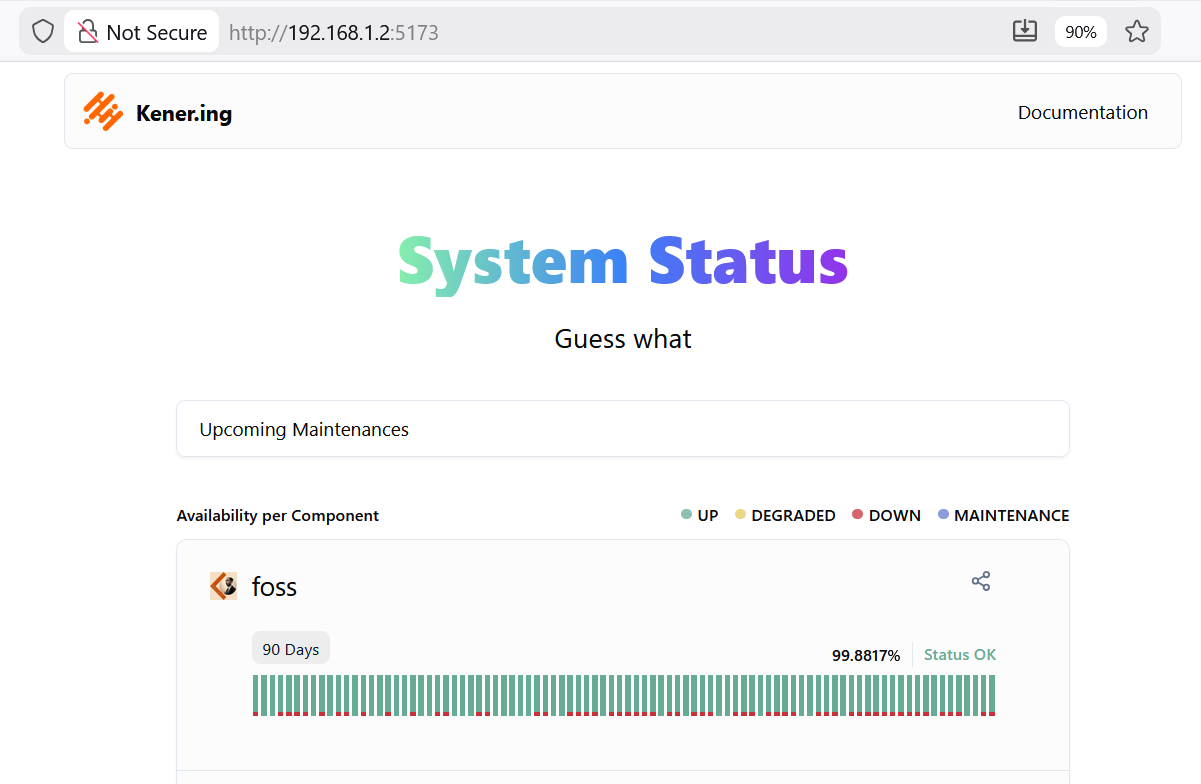
This goes to the port 5173, like a pro vite apP!
You can also with Uptime Kuma pages or kener!
Chats
Just see this dedicated post.
Project Management
If you are already a BA/PM and are very mindful about your time and creation proper project docs like BRD’s
- Project management and issue tracking for everyone - https://github.com/makeplane/plane
🔥 🔥 🔥 Open Source JIRA, Linear and Asana Alternative. Plane helps you track your issues, epics, and product roadmaps in the simplest way possible.
- https://github.com/nfoert/cardie - GPL 3.0
An open source business card designer and sharing platform
Billing
There will come a time to invoice someone.
Why not doing billing with OSS as well?
Open Source Metering and Usage Based Billing API ⭐️ Consumption tracking, Subscription management, Pricing iterations, Payment orchestration & Revenue analytics
See also
Browsers
Librewolf vs Zen vs waterfox vs firefox
Chromium vs brave vs Helium vs Tor browser
flatpak install flathub app.zen_browser.zen -y
#https://github.com/imputnet/helium-linux/releases
wget -P ~/Applications https://github.com/imputnet/helium-linux/releases/download/0.8.5.1/helium-0.8.5.1-x86_64.AppImage
Version 0.8.5.1 allowed me to use logseq via browser, unlike Brave 1.86.148 Chromium: 144.0.7559.133
If you want Chromium, minimal UI, and no crypto/ads stack: Helium is closer to your taste than Brave, as long as you accept rough edges and a smaller project.
If you want “it just works” privacy with maximal site compatibility and do not mind the BAT model existing: Brave is the pragmatic choice.
If you prefer Gecko and Firefox’s ecosystem with a nicer UI and no Mozilla telemetry: Zen is a good daily driver, but not a hardcore anonymity tool.
If you want the strictest privacy and are OK with friction and some breakage: LibreWolf is the strongest stance of the four.
- TightVNC
- Remote Ripple VNC Viewer
Extensions
- Kanban board with our bookmarks: https://github.com/d3ward/b2ntp Again, awsome job of https://d3ward.github.io/about.html
- ublock origin
- bitwarden
Add-ons for firefox that I tried
- Privacy Badger
- https everywhere
- ublock origin
How can I Check my DNS?
ControlD (Windscribe DNS)
Other Free Tools for monitoring Internet
- Monitoring Internet quality
- Wireshark - https://docs.linuxserver.io/images/docker-wireshark/
- PiHole
Interesting Security Tools
- 2fas - https://github.com/twofas/2fas-android
- Proton Auth
What do I like to bring to my HomeLab?
HomeLab Essentials - https://jalcocert.github.io/JAlcocerT/docs/selfhosting/
As of now Im using:
#btop #glances
#lazydocker
sudo docker compose -f 2603_docker-compose.yml up -d uptime....pihole nextcloud ncdb.......
docker ps -f "name=nextcloud|uptimekuma"
Just for reference, with uptime kuma you can see that:
- DNS tend to reply with ~5ms
- A static website can be ~50ms
- A web app goes to ~150/200ms
- WP/Wix official sites goes to ~700ms
These have been apps that I have used at some point at my homelab and might also be of your interest
Container UI’s 🐳: Portainer, Rancher, Dockge…
Syncing 🐳: Syncthing
Webs 🐳: Wordpress, Ghost, LinkInBio selfhosted alternatives…
Wrote a post about the most popular CMS’s here and about LinkStack here
And Web Analytics like https://github.com/rybbit-io/rybbit
Productivity Tools 🐳: Get proper focus
HTTPs Tools: via proxies like NGINX, Traefik or tunneling solutions like Cloudflare Tunnels …
I also enjoyed DuckDNS.
PaaS Tools, like Dokploy
The docker related files are here 🐳
- SSGs combined with a headlessCMS and selfhosted static server 🐳
If you are starting, just use static web hosting for those and forget about servers.